How to Bulk Apply Tags
Tags allow you to label accounts with custom identifiers that reflect important details or unique circumstances. Tags can be applied to individual records and multiple records. To apply a tag to an individual record, use this link; How To Create Tags. To apply tags in bulk to records by using Policy Number or Response Code, follow these steps.
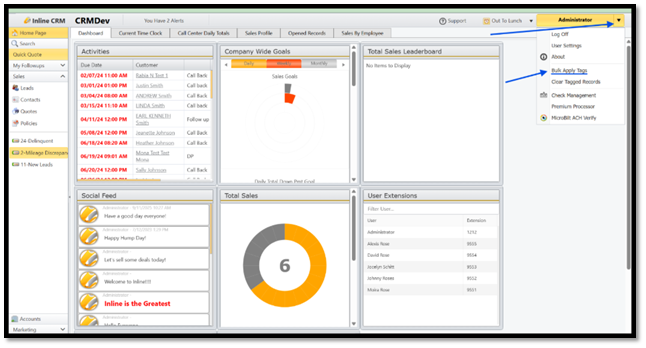
1. Next to your username in the upper right-hand corner, Click the drop-down arrow
2. Select Bulk Apply Tags
3. Select the tag you’d like to bulk apply
4. Select if you are using the Response Code or Policy Number
5. Paste your list in the open space
6. Select Apply Tags
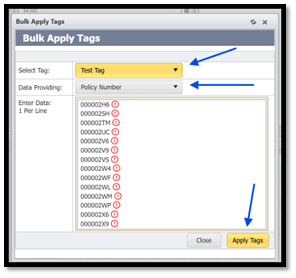
*Note that when you are copying and pasting, you will need to make sure your list is coming from a txt file or it will not apply the tags. If you’re working off of an excel sheet, we suggest copying and pasting your list onto the notepad and then putting it in the open box.
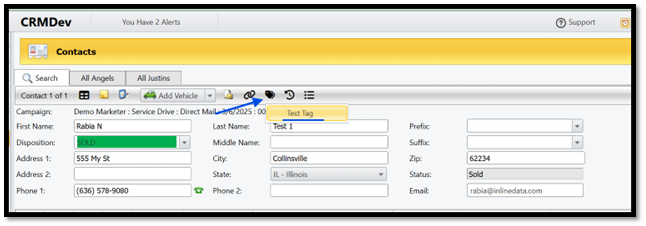
7. After you have bulk applied the tags, you will see the tag listed in the toolbar when you hover over the gift
tag icon
Was this article helpful?
That’s Great!
Thank you for your feedback
Sorry! We couldn't be helpful
Thank you for your feedback
Feedback sent
We appreciate your effort and will try to fix the article