How to Add a New Campaign & How to Change a Campaign
The steps below will show you how to add a new Marketing Campaign as well as how to change/assign leads to a different Campaign.
To add a New Campaign- A Lead Source must be created first.
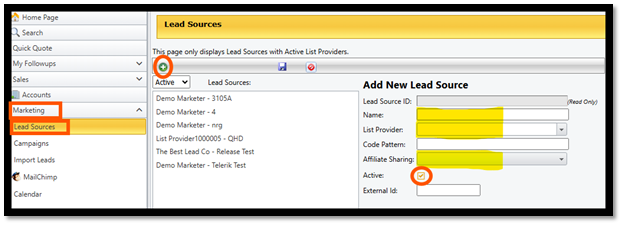
1. Go to Setup > Marketing > Lead Source > Click the green + icon to add new Lead Source
a. Create and Add a Name
b. Select the List Provider from the drop-down menu
c. Select any Affiliates you are sharing data with (if applicable)
d. Check the Active box
e. Click the Save icon
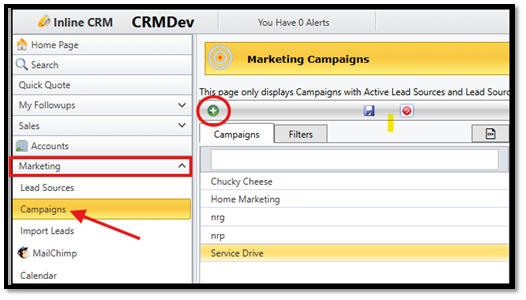
2. Go to Marketing > Select Campaigns > Click the Green +
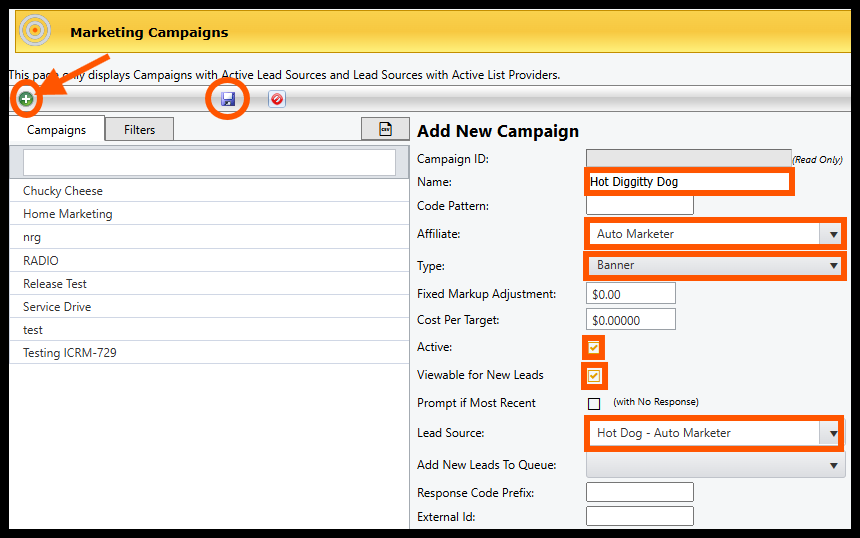
a. Create a Name (required)
b. Enter Code Pattern (if applicable)
c. Choose an Affiliate from the drop-down- Affiliates selected will be responsible for the
plans that are available to leads loaded into this campaign
d. Choose a Type from the drop-down
e. Set Fixed Markup Adjustment (if applicable)
f. Set Cost Per Target (optional)
g. Leave check box for “Active” selected
h. Click the check box "Viewable for New Leads"; this will allow users to select this
Campaign when adding a new Lead.
i. Select a Lead Source (the one you created) from the drop down (required)
j. Add New Leads to Queue (if applicable)
k. Set Response Code Prefix- Response Code Prefix will be the start of Response Codes
created in this Campaign. If the prefix is set to "ABC" then the Response Codes created
will be "ABC00001", "ABC00002", "ABC00003", etc.
l. Set External ID (if applicable)
m. Click the Save icon to complete
** Note: Campaigns can be automatically created when importing a Lead List by adding a Campaign name in the data file.
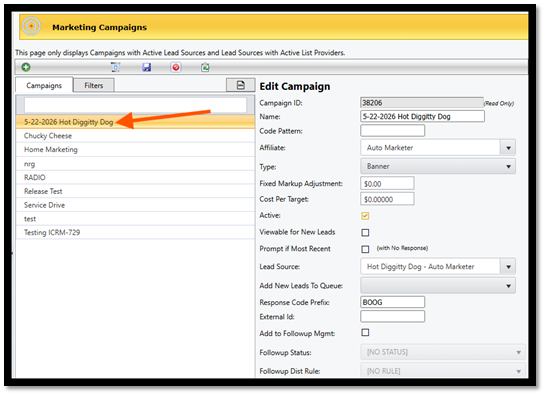
Once the Campaign has been created, you’ll be able to view and select from the list.
Changing/Assigning Leads to a Different Campaign- To move Leads from one campaign to another, follow these steps
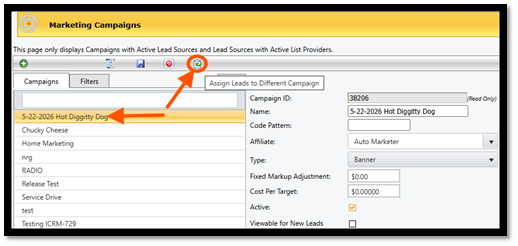
a. Under Marketing, Click Campaigns > Select a Campaign
b. Click the Green Arrow icon
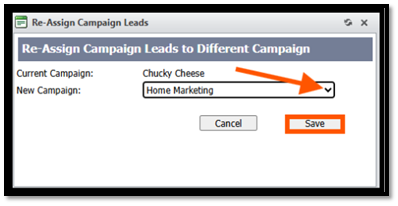
c. When new window opens- Select a New Campaign from the drop-down menu
d. Click Save
e. Click OK when the ReAssign Alert window opens
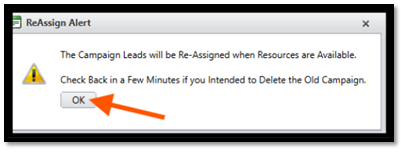
**Larger files with a large number of records may take longer to move than smaller files. You can check the progress by going back to the Campaign list
Was this article helpful?
That’s Great!
Thank you for your feedback
Sorry! We couldn't be helpful
Thank you for your feedback
Feedback sent
We appreciate your effort and will try to fix the article