Inline has several options available to add Leads to your site. You can import your own lead files, use a Marketing company to add lead files, or create a New Lead manually. Here are the steps to manually adding a New Lead/Contact.
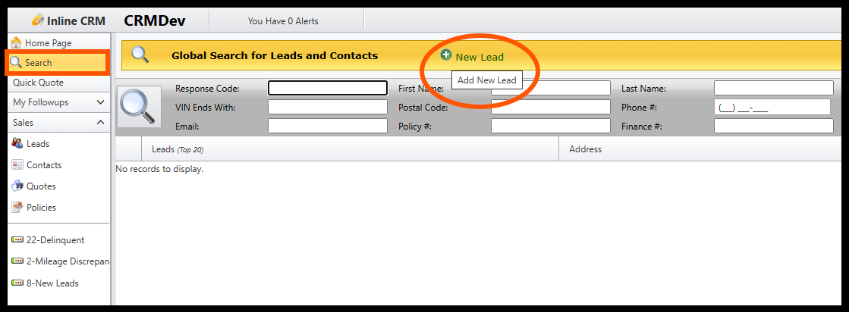
1. Locate and Click on the Search menu on the left-hand side of the page
2. Click the green New Lead icon
3. Enter the Customer’s information in the corresponding fields. (First and Last name, State, Zip, and Campaign are required to add a Quote)
4. Select a Campaign from the drop-down menu. (The Campaign allows you to track where the customer or lead came from and measure the effectiveness of your marketing)
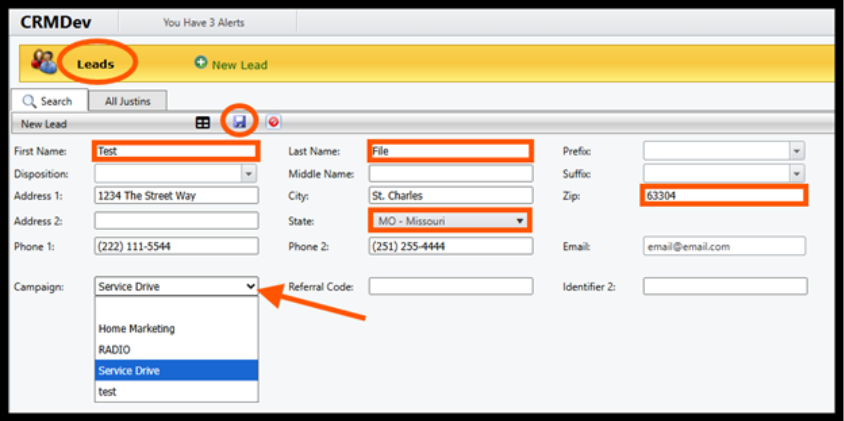
5. Click the Save icon
6. Once the customer details are entered and saved, the Lead will automatically be converted to
a Contact. The Contact record is where all Quotes and Policies for this customer will be
stored. You can also enter additional Customer information by clicking on the Details tab and
filling in the fields.
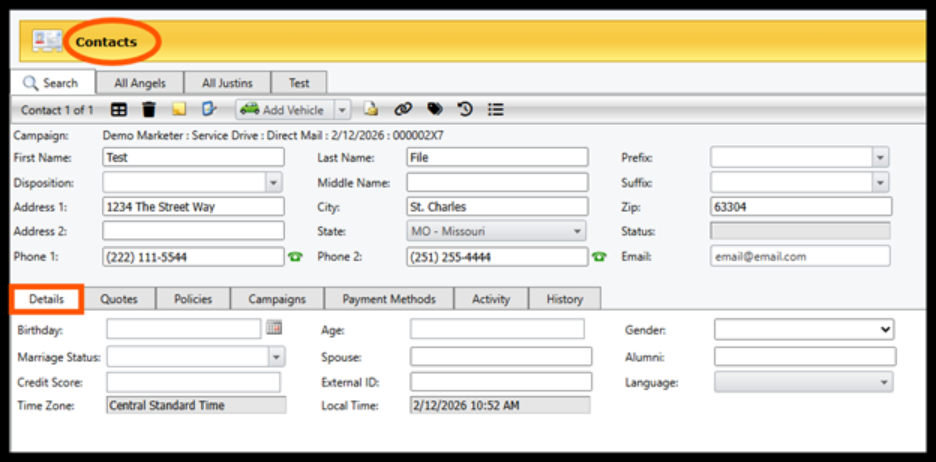
7. Now that a Contact has been created, an asset can be added (Vehicle, Home, RV, etc.) to this
record allowing you to Quote the customer for coverage.
If you need further assistance adding an asset or creating a new quote, use the links below to view our Knowledge Base Articles.
To view our entire Knowledge Base Library please visit: https://support.inlinecrm.com/en/support/solutions
Was this article helpful?
That’s Great!
Thank you for your feedback
Sorry! We couldn't be helpful
Thank you for your feedback
Feedback sent
We appreciate your effort and will try to fix the article