
Getting Started
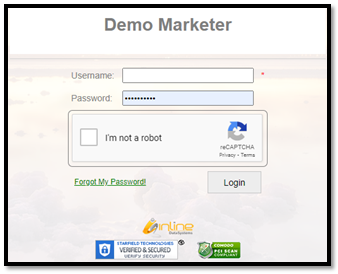
To begin, sign into the system using your username, password and then click the reCAPTCHA.
The default page that opens with Inline is the Homepage, which includes Dashboard, Current Time Clock, Call Center Daily Totals, Sales Profile and Opened Records. Below, we will dive into each of these options.
Dashboard A quick overview with widgets and tabs to provide information in a quick and accessible format.
*To learn about widgets and tabs, see page 16.
In the upper right of the screen:
Access to support email (User specific see Environment Settings)
Clock in/Out
Username (User specific settings such as changing password / logging in or out of the system)
Dashboard Tabs
Current Time Clock Tab
Provides access to view the time clocks for the staff
Ability to print or download
Filter by manager
Call Center Daily Totals
Provides a snapshot of a single date
Filter on the right to select the date
Sales Profile
Provides a graph of sales by Administrator
Filter on the right to query information
Click the Preview button to load the graphs
This can be printed or downloaded
Opened Records
Provides a log of records that have been opened
Filter on the right side by date, users, categories, descriptions, or dispositions
Click the customer’s name in the page, and it will direct you to that record
This can be printed or downloaded
Search
Global Search is the preferred method to query any data within the system
Search includes query options listed below
Response Code
First or Last Name
Postal Zip Code
VIN Ends with
Email
Policy Number
Finance Number
Phone Number
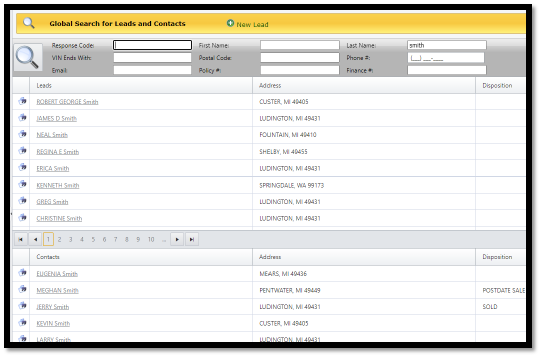
Lead is a record entered into the system that not yet been opened
Sources that populate via Lead will be located on the top half of this page
To turn a Lead into a Contact, just click on the name and it will transition into a Contact
Contact is a record that has been added and or opened
Sources that populate via Contact will be located on the bottom half of this page
These are records that have been opened
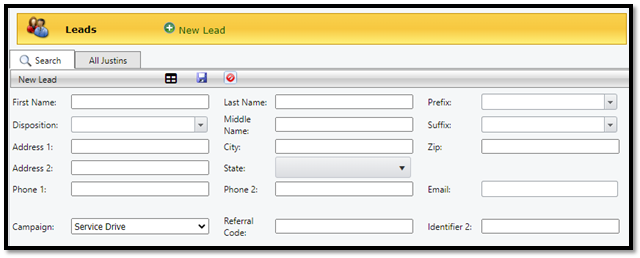
To add a contact that is confirmed not in the system click the green + New Lead
Fill out the available criteria, then click the save disk
Once the information is filled out, and the save disk is completed, the system automatically converts a New Lead to a Contact in the system.
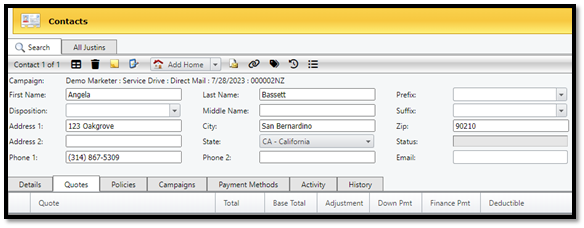
Quick Quote
* This option is only for Auto or RV Campaigns
Provides an option to quickly create a quote
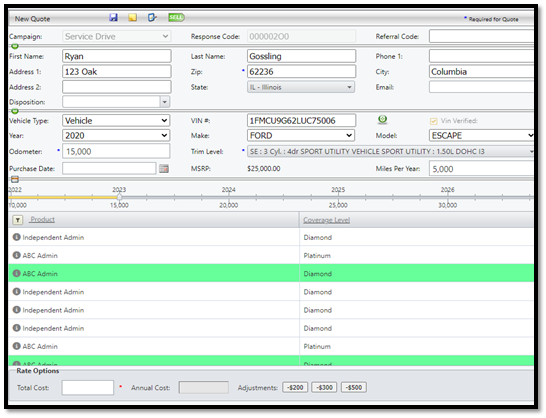
Select the Campaign
Fill out the available fields
Prominent focus on accurate name, phone number, zip code
Ensure that the VIN, Trim and Odometer are complete
Image below
First Icon is the save disk
Second Icon is the notes
Third Icon is the add activity
Fourth Icon the Sell button
Sales
Leads
Used to query leads in the system
Leads are records in the system that have not been touched
Once a Lead has been opened, it becomes a Contact
Contacts
Used to query contacts that are in the system
Contacts are records in the CRM
A Contact can have multiple quotes and/or policies associated with it
Quote
Used to query quotes in the system
Can be filtered by Status, User, or Date
Policies
Used to query policies in the system
Can be filtered by Policy Number, Status or Effective Date
Queue
Used to present specific criteria to users
Provides an automatic assignment of files that need to be actioned
Accounts
*Options for Account Type listed below will include the definition and purpose within the system.
How to Add Accounts:
Click the green + and fill out the criteria, when finished click the blue save disk icon
Affiliate - A flexible entity that segregates business line
The purpose of an Affiliate is to segregate marketing, teams, or to create separate business lines
Administrator –The product provider
The purpose of an Administrator Account in Inline is to release products
Example: Black Diamond, Dimension
Finance Company – A company that runs monthly payments for call centers.
The purpose of a Finance Company is to connect where customer payments will be sent
Example: Paylink, Walco
Payment Processor: Used in Inline to process the payments
The purpose of a Payment Processor is to set up integration to allow for running payments.
Example: USA-EPay, Authorize.net
List Provider – Used to label and report on the provider of the list
The purpose of a List Provider is to allow for additional reporting
Insurer – Lists who insures the policy
The insurer is the carrier on the service contract
Marketer – This is the call center itself, “Your Company”
The purpose of a Marketer is to establish the marketer defaults within the system
Technology Provider – Entities that provide technology solutions or services
The technology provider connects external tool sources to the system such as phone provider, or DocuSign, etc
Marketing
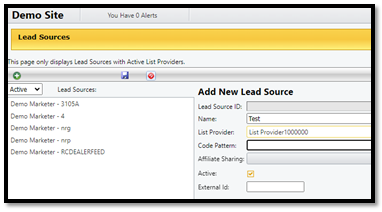
Lead Sources – Provides an option to add Lead Sources with active List Providers.
How to add a Lead Source
Click the Green +
Enter the Name
Choose List Provider – (Entered in the Accounts section)
The Code Pattern field is optional, see support for more info
Choose the Affiliate from the drop-down
Enter an External ID if applicable
Click the Save Disk
Campaigns:
Add your campaigns by following the steps
Click the green +
Create a Name (required)
Enter Code Pattern if applicable
Choose an Affiliate from the drop-down (required)
Choose a Type from the drop-down
Set Fixed Markup Adjustment (if applicable)
Set Cost Per Target (optional)
Set this Campaign to be viewable for new leads by checking the box; this will allow users to select this Campaign when they add a new Lead.
Set the Lead Source with the drop down (required)
Add New Leads to Queue (if applicable)
Set Response Code Prefix (if applicable)
Set External ID (if applicable)
Click the Save Disk at the top left of the page
** Note: Campaigns can be automatically created upon import by adding a Campaign name to the import file
Import Leads:
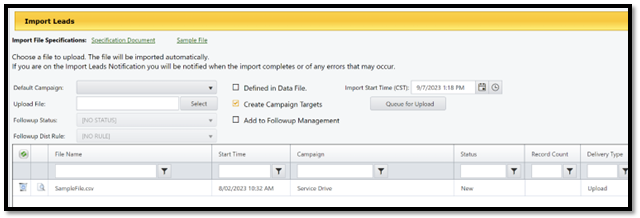
There is a hyperlinked Specification Document and Sample File located at the top of the page
Note: the excel needs to be saved as a CSV File
You can choose a default Campaign by selecting from the drop-down or by clicking the ‘Defined in Data File’ box if you have included CampaignCode in the import file
You can choose to delay the import to a specific time (time is in CST)
Click the Select button to search for the file
Click the File and select Open
Click the Queue for Upload button
** Note: If you have elected to use our Followup Management System, you can dictate which Status and Distribution Rule you’d like the Lead to be imported into here.
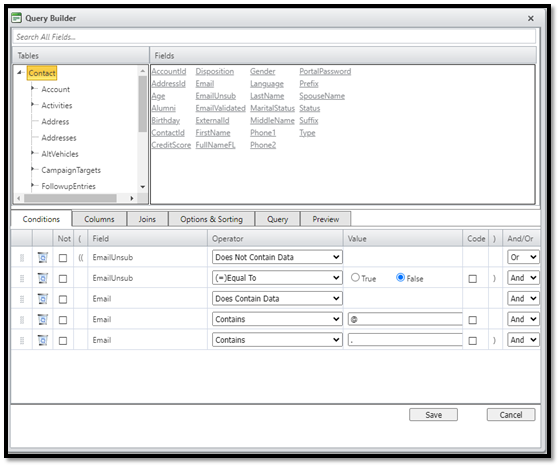
Mail Chimp Integration
Mail Chimp can be integrated to automate your marketing lists
Create Conditions to set rules
Columns would be the data that would be syncing to Mail Chimp
Conditions – set of rules excluding or including who would be emailed
Query – Provides script info for coding
Preview – Provides a preview of emails meeting the conditions
Calendar
Creates a marketing calendar to view the direct mail or email marketing calendars
Reports
* Canned reports that can be viewed, downloaded, and printed. Below is a list of the reports available, their intentions and how to query information.
Sales Reports
Administrator Product Sales Profile
Breakdown of sales by product
Choose the date range on the right- side and then select Preview to view
The right side of the report can be filtered by date, administrator, user, manager, affiliate or policy type. Then click preview to query data.
Call Center Daily Totals
Provides a sale by user report for a one-day view
The right side of the report can be queried by date
Call Center Daily Totals no Cancels
Identical report to the Call Center Daily Totals, excluding the cancelations
The right side of the report can be queried by date
Cancel Saves by User
Displays the Saves by User, click the + for Save Method to Expand report for more information
The right side of the report can be filtered by date, and payment made. Then click preview to query data.
Claims Log
Provides a report that displays the claims that have been created in the determined date range
The report's The right side can be filtered by date, policy effective date, claim status or administrator. Then click preview to query data.
Disposition by User
Provides a report that can view either the disposition of vehicles or customers
The right side of the report can be filtered by date, affiliate, disposition type and role. Then click preview to query data.
Role filter is optional as it allows to filter by security role
Email Capture Summary by User
Provides a query that displays the total response by users, and it also displays the quoted or sold via email option
Sale numbers include pending Sales
All numbers are based on the user who first initiated the response
One user may have responded by another user may have quoted or sold
Quoted numbers do not include the sold records and vice versa
Outstanding Activity Log
Provides a list of activities that have not been completed and sets it in due date order
The right side of the report can be filtered by date, user, description or by manager. Then click preview to query data.
Payment Processor Log
Provides a log of the transactions and sorts them by processor
This report also shows the transitions that were approved, declined, or errored
Sort the filter first by selecting the date, then choose if you want to see via transaction date or settled date. You can further filter by processor, user, transaction type, status, or payment type
If you are looking for a particular transaction, you can search by account last 4 or transaction ID. Then click preview to query data.
Phone Call Log
Note: This report only is functional if a phone system is integrated in Inline.
Provides a log of the users and what contact with phone number they have contacted
Select the date range and you can filter by user. Then click preview to query data.
Policy Payment Details
Provides a record of all the policy payments with focus on effective date and status
The right side of the report can be filtered by date, payment status, payment type, method type and source type. Then click preview to query data.
Postdate Throughput
Provides a record of total process vs total declined for postdate transactions by user
The right side of the report can be filtered by date, reverse reasons or by group. Then click preview to query data.
Queue Statistics Report
Provides a list that displays the records that have been queued but not actioned
The right side of the report can be filtered by date and group by. Then click preview to query data.
Quoted Not Sold Log
Provides a list of records that were quoted in the system but not sold
The form is interactive, by clicking the first name field then would be directed to that quote.
The report's The right side can be filtered by date, status, user to filter, user, campaign type, dispositions or affiliate. Then click preview to query data.
Reversed Policy Report
Provides a list of records for all the policies that have been reversed
This form is interactive, by clicking the name file then would be directed to that record.
The right side of the report can be filtered by date e, date to filter, quoted by, user filter, or by specific reverse reason. Then click preview to query data.
Sales By State and Vehicle Year
Provides a list of State and Model Year
The right side of the report can be filtered by date, date filter, and campaign. Then click preview to query data.
Sales by Vehicle Information
Provides data based on average information based on the vehicle make
Filters on the far-The right side can choose the date. Then click preview to query data.
Sales Log
Provides auto sales data and is sorted by date.
First column icon provides history from the file
The right side of the report can be filtered by date, date filter, status, down payment status, administrators, finance companies, finance programs, user to filter, users, affiliate, campaign, funding status, product type, campaign type, state, and user affiliate. Then click preview to query data.
Sales Log-Home Warranties
Provides home sales data and is sorted by date.
The right side of the report can be filtered by date, date filter, status, down payment status, administrators, finance companies, finance programs, user to filter, users, affiliate, campaign, down payment status, funding status, state, state, finance program and policy type. Then click preview to query data.
Sales Log- RV Warranties
Provides RV sales data
No information will query if no sales of this product are in the system
The right side of the report can be filtered by date, date filter, status list, administrators, finance companies, user to filter, users, affiliate, campaigns, down payment status, funding status, coverage options, and states. Then click preview to query data.
Sales Log- Book-Vehicles
Provides sales information that is filtered through multiple views
Access Summary by vehicles, administrator, sales rep, sales rep manager, second user, third user or by campaign by clicking on the names on the right had side.
Filter on the far-The right side by date, date filter, status list, downpayment status, administrators, finance companies, finance program, used to filter, users, affiliate, campaigns, funding status, product type, campaign type, state, user affiliate, and campaign type. Then click preview to query data.
Sales Log Overview
Provides graphical and chart information on the auto sales log
The right side of the report can be filtered by date, date filter, status list, administrators, finance company, users, affiliate, or down payment status. Then click preview to query data.
Sales Log Overview Home Warranties
Provides graphical and chart information on the home sales log
The right side of the report can be filtered by date, date filter, status list, administrators, finance company, users, affiliate, and down payment status. Then click preview to query data.,
Sales Rate of Pmts by Employee
Provides list information by sales associate on the total number of policy payments made
The right side of the report can be filtered by date, date filter, user to display, status, administrator, finance company, affiliate, and product type. Then click preview to query data.
Sales Summary by Employee
Provides sales summary by employee
You can click on the name in the report and see specifically information related to that user’s sales
The right side of the report can be filtered by date, users, cancel date, user to use, count revers as sale, include pending time limit reversed, show by manager, policy type, funding status, and states. Then click preview to query data.
Sales Transaction Summary by Employee
Provides statistics of sales by associate
The right side of the report can be filtered by date, User to Use, Manager, Group by Manager, Down Payment Status, Policy Status, User, Administrator, Policy Types and State. Then click preview to query data.
Script History Log
Note: This report will only query data if scripting is utilized in the system
Report displaying Script History.
Tagged Records Log
Provides a list of accounts that have been tagged
The right side of the report can be filtered by Show Notes Icon, Date, Tags, and Tag User. Then click preview to query data.
User Close and Quote Rates
Provides both list and charts of quote and close rate by user
The right side of the report can be filtered by date, Users, Manager, and Affiliate. Then click preview to query data.
User Customer History Log
Provides a log of how many times a file has been opened with timestamp
Click the + to expand record timestamps
The right side of the report can be filtered by date, users, category, description filter, and dispositions. Then click preview to query data..
User Notes Log
Provides a report of all the notes for a user
The right side of the report can be filtered by date, user, and description filter. Then click preview to query data..
User Sales Statistics
Provides a list of users and total sales
The right side of the report can be filtered by date, user to user, min call duration (sec), show by manager, and users. Then click preview to query data.
User System History Log
Provides a detailed log of all system responses, time stamp and IP address
The right side of the report can be filtered by date, user and description filter. Then click preview to query data.
Cancel Reports
Cancel Accounting Report 1
Provides a summary of cancels by effective date
The right side of the report can be filtered by sales date, sales end date and cancel date. Then click preview to query data.
Cancel Accounting Report 2
Provides a detailed summary of cancels by effective date
The right side of the report can be filtered by sales date, sales end date, and cancel date. Then click preview to query data.
Cancel Chargeback Report
Provides a summary of cancels and their chargeback ending statistics
The right side of the report can be filtered by sales date, sales end date and cancel date. Then click preview to query data.
Cancel Log
Provides a detailed summary of the cancelled accounts
The right side of the report can be filtered by sales date, sales end date, cancel date, payment less than, cancelled by users, administrators, policy type and policy user. Then click preview to query data.
Cancel Rate by Employee
Provides graphical data of cancel by employee
The right side of the report can be filtered by sales date, payment less than, users, managers, affiliate. Then click preview to query data.
Cancel Rate Trend
Provides graphical data of cancel rate monthly trend
The right side of the report can be filtered by date, affiliate and users. Then click preview to query data.
Cancellation Analysis
Provides graphical data of cancellation information
The right side of the report can be filtered by date, date filter, funding status, and finance company. Then click preview to query data.
Cancel and Saves by User
Provides summary information of cancels and saves by user
The right side of the report can be filtered by date, date filter, policy status, users and policy type. Then click preview to query data.
Cancels by Cancel Date
Provides summary of cancels by cancel date
The right side of the report can be filtered by sales date, cancel date, payments less than, cancelled by user, administrator, and policy type. Then click preview to query data.
Cancels by Date Canceled
Provides a detailed summary of cancels by cancel date
The right side of the report can be filtered by sales date, cancel date, payment less than, cancel methods, cancel methods, cancel methods, cancelled by user, administrator, policy type, finance transmitted only, and finance company. Then click preview to query data.
Cancels with Saves Breakdown
Provides cancel report with expandable breakdown for save method
The right side of the report can be filtered by date and date filter. Then click preview to query data.
Full Down Payment Waived Cancel Rate
Provides a list of cancels vs active highlighting waived down payments
The right side of the report can be filtered by date. Then click preview to query data.
User Cancel Rate by Pmts Made
Provides a list of cancel rates by employee and payments made
The right side of the report can be filtered by date, administrators, finance companies, users, affiliates and policy type. Then click preview to query data.
Marketing Reports
Affiliate Marketing Summary
Provides graphical information on sales by affiliate
The right side of the report can be filtered by date, affiliate, list provider, lead sources, and campaign. Then click preview to query data.
Calls Per Campaign Report
Provides a list of campaigns and the number of calls
The right side of the report can be filtered by date and role. Then click preview to query data.
Campaign Activity Report
Provides a breakdown of responses per campaign
The right side of the report can be filtered by date, campaign, and affiliate. Then click preview to query data.
Campaign Cost & Profit Report
Provides a list of profit and cost by campaign
The right side of the report can be filtered by date, affiliate, campaign type. Then click preview to query data.
Campaign Create Source Breakdown
Provides a breakdown of all campaign targets per date range
The right side of the report can be filtered by date range, then click preview to query data.
Campaign Profitability Report
Provides a detailed list of profit and cost by campaign
The right side of the report can be filtered by date, affiliate, campaign type. Then click preview to query data.
Campaign Responded Records
Provides a list of campaigns that have been responded
The right side of the report can be filtered by date, campaigns, date filter, dispositions, user filter, users, affiliates, campaign types and tags. Then click preview to query data.
Campaign Response Timing
Provides a list of responses by campaign
The right side of the report can be filtered by date, date filter, and campaign filter. Then click preview to query data.
Dispositions By Campaign
Provides a list of dispositions selected per campaign
The right side of the report can be filtered by date and campaign. Then click preview to query data.
Dispositions By Target Identifier 1
Provides performance by campaign target identifier 1
Dispositions By Target Identifier 2
Provides performance by campaign target identifier 2
Email Campaign Performance
Provides a graph on email campaign data
The right side of the report can be filtered by data and campaigns. Then click preview to query data.
Followup Customers Report
Provides a list of files that require followup
The right side of the report can be filtered by date, campaigns, date filter, dispositions., status, affiliate, and campaign types. Then click preview to query data.
Metrics Performance Report
Provides display campaign metrics.
Performance By Campaign
Provides marketing performance based on Campaign.
Performance By List Provider
Provides performance by list provider.
Performance By Campaign Target Identifier1
Provides a performance by campaign with focus on response conversion
The right side of the report can be filtered by date, affiliate, list provider and Identifier Filter. Then click preview to query data.
Performance By Campaign Target Identifier2
Provides a performance by campaign with focus on conversion rate
The right side of the report can be filtered by date, affiliate, list provider and Identifier Filter. Then click preview to query data.
Performance By Lead Source
Provides performance by lead source
Click the + to expand to a graphical view for that specific lead source
The right side of the report can be filtered by date, list provider, lead source, campaign, include pending sales. Then click preview to query data.
Performance By List Provider
Provides a high-level view of list provider statistics
The right side of the report can be filtered by date, list provider, lead source, campaign, Include pending sales. Then click preview to query data.
Performance By Postal Code SCF
Provides a performance by postal zip code
The right side of the report can be queried data by choosing the date, state, show only if sales, show only if responses. Then click preview to query data.
Performance By State
Provides a performance by all states listed
Click on the state to query just that state info
The right side of the report can be filtered by date, list provider, lead source, campaigns, states, affiliates, campaign types, and include pending sales. Then click preview to query data.
Performance Target Start Date
Provides a list by performance of campaigns by start date
Click the + to expand the information which will unhide all the related campaigns with that start date
The right side of the report can be filtered by date, list provider, lead source, campaign, and affiliate. Then click preview to query data.
Performance by Make
Provides a list of Auto makes and the quantity of policies including active and cancelled
Click the + to expand the makes by years and quantities
Click the column tabs to sort the data from highest to lowest value
The right side of the report can be filtered by date, list provider, lead source, campaigns, affiliates, and campaign types. Then click preview to query data.
Performance by Model Year
Provides a list of common vehicle years and the quantity of sales including active and cancelled
Click the + to expand the years
The right side of the report can be filtered by date, list provider, lead source, campaigns, affiliates, and campaign types. Then click preview to query data.
Performance Indicator Rate
Provides graphs of conversion, response rate, response conversion and list provider
The right side of the report can be filtered by date, show trend by, list provider, lead source, campaign, affiliate, states and include pending sales. Then click preview to query data.
Sales Log
Provides a brief sales report by marketing company
The right side of the report can be filtered by date, date filter, status list, administrators, finance companies, users, affiliate and campaign. Then click preview to query data.
Accounting Reports
Administrator Contract Remittance
Provides a list of policies with remittance to the administrator
The right side of the report can be filtered by date, date filter, administrator, finance status, finance company, admin cost paid, only if it has rate id and finance programs. Then click preview to query data.
Administrator Return Cost Report
Provides a list of cancel and premium return per policy
The right side of the report can be filtered by date, date filter, administrator, finance status, finance company, admin cost paid, only if has rate id and finance program. Then click preview to query data.
Business Snapshot 1
Provides graphical and chart data for vehicle sales
The right side of the report can be filtered by date, administrators, finance companies, users, and affiliates. Then click preview to query data.
Business Snapshot 1 – Home Warranties
Provides graphical and chart data on home sales
The right side of the report can be filtered by date, administrators, finance companies, users, and affiliates. Then click preview to query data.
Collected Profit Retained Detail
Provides a detailed list of collected profit retained per policy
The right side of the report can be filtered by date, date filter, affiliates, net disbursements, net unprocessed refunds, and status. Then click preview to query data.
Collected Profit Retained Summary
Provides a summary of collected profit retained by year
The right side of the report can be filtered by date, date filter, affiliates, status net disbursements, and net unprocessed refunds. Then click preview to query data.
Expiring Credit Cards
Provides a list of expiring credit cards on file
The right side of the report can be filtered by date and finance company. Then click preview to query data.
Finance Cancel Remittance
Provides a list of finance company and cancel remittance
Ride side of the report can be filtered by date, finance company, and date filter. Then click preview to query data.
Finance Contract Remittance
Provides a list of finance company and contract remittance
Ride side of the report can be filtered by date, finance company, and date filter. Then click preview to query data.
Finance Fee & Funding Compare
Provides a list of finance feeds, funding amount and hold back fee by finance company
The right side of the report can be filtered by date, finance company, and finance remit status, then click preview to query data.
Finance Funding Overview
Provides a brief overview of finance company and funding
The right side of the report can be filtered by date, date filter, finance company, status, funding status and admin list. Then click preview to query data.
Finance Ledger Detail
Provides a detail list of finance reserve contributions, charges and policy liability
The right side can be filtered by date, date filter, affiliates, status and finance company. Then click preview to query data.
Finance Ledger Summary
Provides graphical data by finance reserve contributions, charges, and policy liability
The right side of the report can be filtered by date, date filter, affiliates, status and finance company. Then click preview to query data.
Finance Projected Funding 1
Provides a list of projected finance funding
The right side of the report can be filtered by date, date filter, finance company and days to add after payment. Then click preview to query data.
Gross and Premium Earings Detail
Provides a list of gross profit earned from both active and cancelled policies
The right side of the report can be filtered by date, date filter, affiliates and status. Then click preview to query data.
Inline Direct Bill Charges
Provides a breakdown of charges to be paid to Inline by date range
The right side can be filtered by date, date filter, pending charges, and service type. Then click preview to query data.
Net Profit Earnings Detail
Provides a detailed list of the net profit earnings
The right side can be filtered by date, date filter, affiliates, status, net disbursements and net unprocessed refund. Then click preview to query data.
Net Profit Earnings Summary
Provides a list of net profits based on quarterly summaries
The right side can be filtered by date, date filter, affiliates, status, net disbursements, and net unprocessed refunds. Then click preview to query data.
Policy Finance Funding Status
Provides a list of policy finance company and funding status
Received Administrator Commission
Provides a detailed list of received finance company funding
Received Finance Funding
Provides a detailed list of received finance company funding
The right side can be filtered by funding dates, finance company, status, show detail and finance account. Then click preview to query data.
Sale Tax Detail
Provides a list of state tax
The right side can be filtered by date range and policy status. Then click preview to query data.
Unfunded Administrator Commission
Provides a list of unfunded expected commission from the administrator
The right side can be filtered by administrator, status, date range and date filter. Then click preview to query data.
Unfunded Finance Policies
Provides a detailed list of unfunded finance policies
The right side can be filtered by date, date filter, finance company, status, minimum payments made, finance account, and policy type. Then click preview to query data
Library
Documents
Internal archive of important documents such as logos.
Directories
Ability to organize directories and restrict access based on security role.
FTP View
Provides the ability to manage the FTP exports.
Setup
Manage Users
Users
Provides access to the Inline system
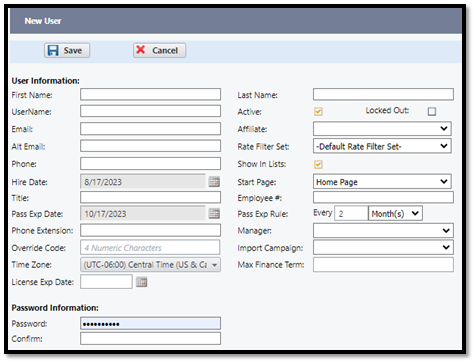
Click the + Add New User and fill out the fields
Add email which will autofill when sending emails out from this user
Alt email can provide a secondary email to send from
Hire date can be entered
Password Expired Date is the next date the password will need to be recreated and the rule determines that frequency
Override Code is a 4-digit code so that this User’s permissions can be used on another User’s computer to override their default permissions
Max Finance Term can limit the User to a max term limit they can finance
Password field will be the first password this User will use to access the system. The requirements located in the Environment Settings will still apply to this field.
Active check box is required for the user to access the system
Locked Out check box can be done manually at time of termination or it will automatically go into this status when the password is entered incorrectly 5 times.
Affiliate can be used to limit this user to specific Affiliates
Employee # is optional
Manager field assigns the User to a manager, this can be displayed in the widget and in reports within the system
When a user is terminated, all activities will be automatically assigned to the manager listed
Import Campaign will limit the user to only see plans under that Campaign
Click the Save disk to add the User to the system
Users can be copied from another User by following these steps
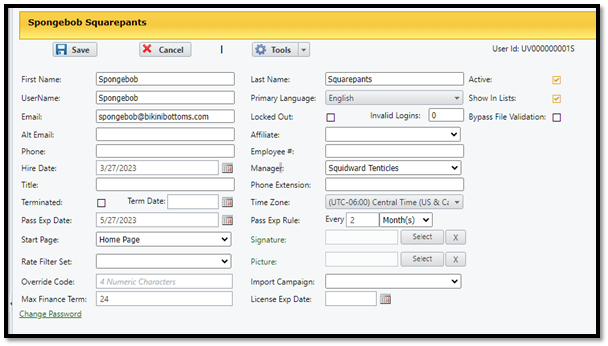
Under Manage Users > Users > Click the edit pencil next to the user’s name
Click the dropdown arrow next to the Tools button
Reassign Activities - this option allows you to reassign activities that are currently assigned to the user and asign it to an other user
Copy User - Create a new User with the same rules as the original User
This will direct you to a dialog box where you will enter the new User’s information, once complete click the save disk
Copy User Settings - A quick way to copy profilie settings from an existing User to another User from a dropdown list
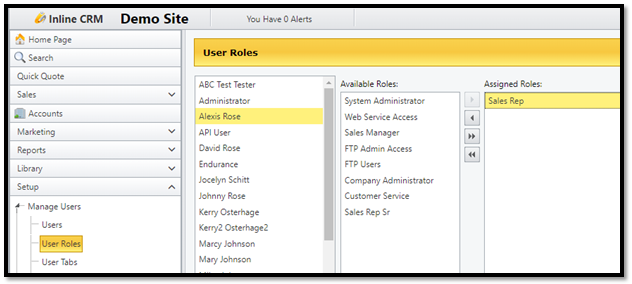
User Roles - Provides view and permissions to the Users
To assign a roll to a user Click the User’s name, choose from the middle column for available roles, then use the arrow to assign the role to the user
Note only one role per user should be assigned
Note changes take place immediately (e.g., this page has no save disk)
Note Changes take effect once the user has logged out then back in
User Tabs
Entity Tabs
Provides additional tabs for Account, Contact, Lead, Policy, and Quote
Dashboard Tabs
Provides tabs to be added to the Dashboard
User Queues
Allows to assign Users to Queues
User Widgets
Allows to assign Users to Widgets
Pay Profiles
Allows to assign Pay Profiles to Users
Posting Tokens
Allows a user to post data via Inline’s API
Security Roles – The permission to create canned roles to be used in the system, each of the default views will have a brief description below, however, all roles are customizable.
Company Administrator
Highest permission User role
Recommended to backend associates who will be responsible for establishing rules in the system
Customer Service
Used with permissions associated to roles such as Retention, Collections, or Customer Service-related roles
Sales Manager
Used with permissions associated to roles such as Sales Rep Manager, or related role
Sales Rep Sr
Used with permissions associated to a higher tier of Sales Representatives or related roles
Sales Rep
Used with permissions associated to basic tier of Sales Representatives or related roles
FTP Admin Access
Used for Affiliates who need connection to Inline with access to sign into the system
FTP Users
Used for Affiliates who need connection to Inline and does not have access to the system
Web Service Access
Used for Affiliates who require web service access, but not access to sign into the system
Environment
Settings
Global settings such as default system settings or customizable cost buttons
Manage Tabs
This area allows you to establish tabs for commonly queried data
Notifications
This area allows automated reports to be emailed from the system
Manage Queues
This area allows access to create queues that the users can be assigned to, such as a delinquent queue.
Widget Settings
Allows customization of company goals or user goals, not all widgets can be customized, however, the ones that can just select them to begin adjusting
To edit Widget Settings > click the widget name > then fill the available fields, all updates save automatically
FTP Exports
Allows access to build FTP Export information to an FTP Server
Email Triggers
Allows to automate email triggers
IP Restrictions - Allows to create a safelist IP Address
External Post - Allows to you to build an API post to an external system
Big Dashboards
Allows Widgets to be displayed via a URL that can be displayed on an external source, such as a TV.
Scripting
Allow customizable scripts that associates follow in their call flow.
Manage Rates
States/Markups
Set total markup by affiliate and product
Follow these steps:
Click on the Affiliate
Click the Administrator from the drop-down menu
Click the Product from the drop-down menu
Click the Coverage from the drop-down menu
Click the state located in the available states and slide the area to selected states
Move all states by clicking the double arrow
Click the state on the selected states and the markup fields can be edited
Fixed Markup is the value that cannot be changed at the time of the quote is generated.
Variable Markup is the total amount that can be changed at the time the quote is generated. (discounted)
Total Markup is the combination of Fixed Markup and Variable Markup
Default Max Increase is the total amount that the retail price of the product being sold can be increased by
Default Discount Amount is the default amount that the sales rep can discount.
Tier Discount 1
This is the next tier of discount that can go higher than the default.
This tier is given to a role in Security Roles
Tier Discount 2
This is the next tier of discount that can go higher than default and tier 1
This tier is given to a role in Security Roles
Tier Discount 3
The highest tier of discount that can go higher than default, tier 1 and tier 2
This tier is given to a role in Security Roles
Admin Base Adjustment
This field can add an additional amount to total Dealer Cost.
The higher or lower base adjustment for the Administrator
Change All States
Allows all states to be changed to this set
Change All Product Coverages
Allows all Product Coverages to apply these changes
Change All Affiliates
Allows all Affiliates to apply to these changes
Coverage Settings
Allows default rules for coverages by product
Follow the below steps
Select the Product from the drop-down menu
Select the Product Level in the field to the left
Coverage Settings Tab
Coverage Alias – Allows you to ren
Priority – Allows you to set how you want the coverages to show up
Color – Presents this color on the quote screen
Active Deductibles – Allows you to select what deductibles you want to show up on the quote screen
Default Deductible – The default that will show up on the quote screen
Max Administrator Fee – Use this field to set a max cancel fee for an administrator / coverage
Default Finance Program – Allows you to set a default finance program
Override Default Down Payment Settings
Set Min down payment % with override
Min Down Payment %
Default Down payment %
Min Down payment Amount
Default Down Payment Amount
Then Click the Save Disk
Coverage Description Tab
Provides a design window for Coverage Description
The description will show when the user clicks the “i” on the quote screen
Use the tools listed, click to HTML to paste code
Body of the description can paste from exterior document source
Option Settings Tab
Active signifies the option is available and active for this coverage
Auto Apply preselects this option on the quote screen
Allow Check means a user can check or uncheck this option on the quote screen
Alias field allows renaming of the option
Rate Filters
Follow the below steps to add a new rate filters
Select the Rate Filter set from the drop-down menu
Select the product from the drop-down menu
Select the coverage level
Click the Green + and fill out the available terms
Click Save in the dialog box to save the rate filter
Refund Rules
Provides a view of the cancel refund rules created by administrator/product/coverage
Finance
Programs – Financed fee, Holdback, and Cancel fees
Program Assignment – Allows specific rules to be created to assign records to finance program automatically
Data Input
Customer Dispos
Create the customer dispositions by following the steps
Click the + for Add New Disposition
Lable the disposition in the blank bar
Choose a color if desired
Choose check box for Active if wanting it to be available immediately
Click the check mark at the first column
This page can be ordered by moving the arrows up and down
Vehicle Dispos
Create the Vehicle dispositions by following the steps
Click the + for Add New Disposition
Lable the disposition in the blank bar
Choose a color if desired
Choose check box for Active if wanting it to be available immediately
Click the check mark at the first column
This page can be ordered by moving the arrows up and down
Home Dispos
Create the Home dispositions by following the steps
Click the + for Add New Disposition
Lable the disposition in the blank bar
Choose a color if desired
Choose check box for Active if wanting it to be available immediately
Click the check mark at the first column
This page can be ordered by moving the arrows up and down
Tags
Similar to Labels, this section provides quick mentod of identifying records
Create default tags that will be used by follwing the steps below
Click the Green +
Create the Tag name
Select Category (this determines where the tag will display lead or contact)
Select the security roles that can view or use this tag
Auth Codes
Create the authorization codes
Campaign Types
Create the campaign types
Reverse Reasons
Create the list of reverse reasons
Cancel Reasons
Create the list of cancel reasons
Mail Merge
Templates
List of created templates for documents and emails
Fulfilment Docs
Where fulfilment documents are stored
Template Security
Allows the default templates to specific security roles
Was this article helpful?
That’s Great!
Thank you for your feedback
Sorry! We couldn't be helpful
Thank you for your feedback
Feedback sent
We appreciate your effort and will try to fix the article