
Sales User Guide
Version 9.13.23
Getting Started
To begin sign into the system using your username, password and then click the reCAPTCHA.

The default page that opens with Inline is the Homepage, which includes Dashboard, Current Time Clock, Call Center Daily Totals, Sales Profile and Opened Records. Below, we will dive into each of these options.
Dashboard: A quick overview with customizable boxes to provide information in a quick and accessible format called Widgets.
In the upper right of the screen:
Access to support email (User specific see Environment Settings)
Clock in/Out
Administrator (User specific settings such as changing password / logging in or out of the system)
Current Time Clock Tab:
You can see a snapshot of the status for your staff
You can download or print this page
You can filter by date to view or by manager on the right
Call Center Daily Totals:
This is a snapshot of how the day ended up to the date selected.
You can filter the date to view on the right
Sales Profile
Provides a graph of the sales by state
You can use the filters on the right side to query the information
Click the Preview button on the bottom right to load the graphs
You can print or download this page
Open Records
Provides a log of the customers that have interaction
Filter on the right side by date, users, categories, descriptions, or dispositions.
You can print or download this page
You can also click the name in the page, and it will direct you to that record
Search
Global Search is the preferred method to query any data within the system
Search includes query options based on the listed conditions
First or Last Name
Postal Zip Code
VIN Ends with
Email
Policy Number
Finance Number
Phone Number
Lead is a source entered into the system not yet actioned
Sources that populate via lead will be located on the top half of this page
Contact is a lead source that has been added and or actioned
Sources that populate via contact will be located on the bottom half of this page
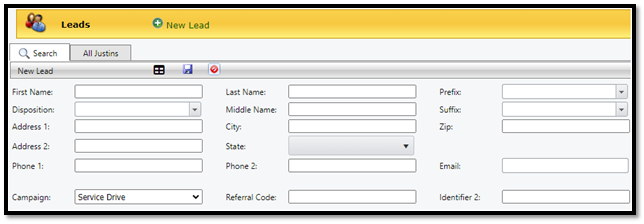
To add a contact that is confirmed not in the system click the green + New Lead
Fill out the available criteria, then click the save disk (Image 1)
Once the information is filled out, and the save disk completed, the system automatically creates the New Lead as a Contact in the system. (Image 2 located in contacts)
Contacts
From the contact screen, you can update the customer’s information
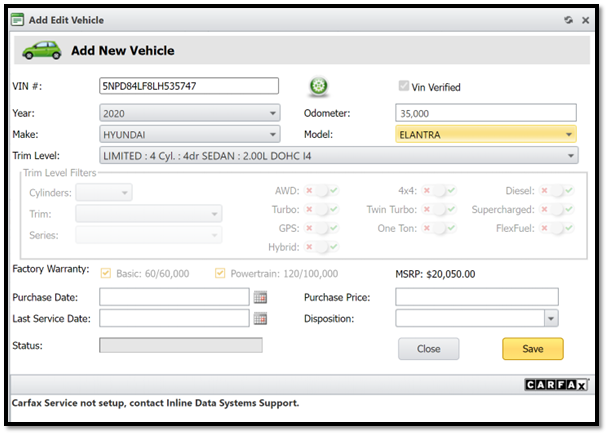
You can add asset with the drop down Add Auto or Add Home

For Auto, enter the, vin then click Vin Decoder, then enter Odometer, finish with save
For home, verify the square foot is entered
In order to add an additional address, click the drop down where it says: “existing address” then click the blank field, this will allow the below fields to be manually added.

Quote
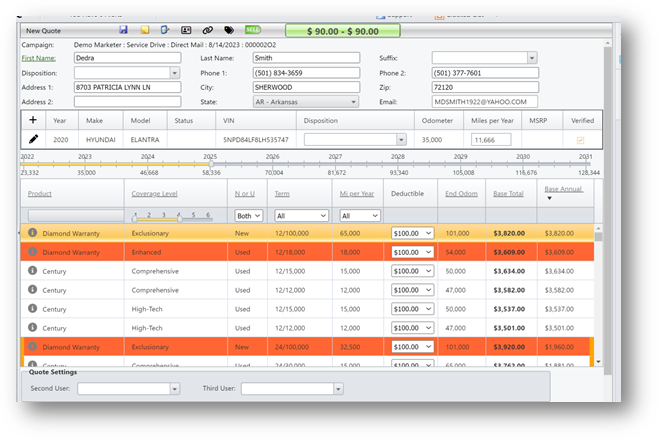
Click the “(quote) icon to begin quoting the asset

Use the scroll bar to filter the policies based on the customer’s suggested term limit
Select the policy by clicking once on the options below
Green is Exclusionary
Blue is stated or named component
Yellow is Powertrain enhanced
Red is Powertrain
Select the deductible and move to the next step
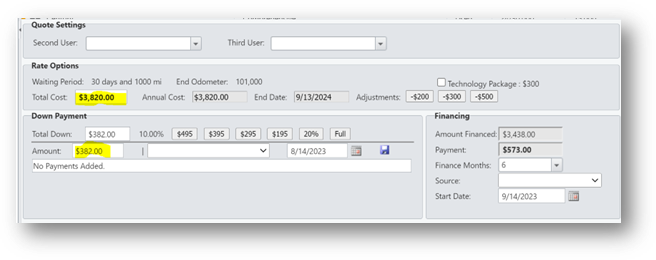
Once the plan has been selected, you can use the adjustment buttons to take the total cost field up or down
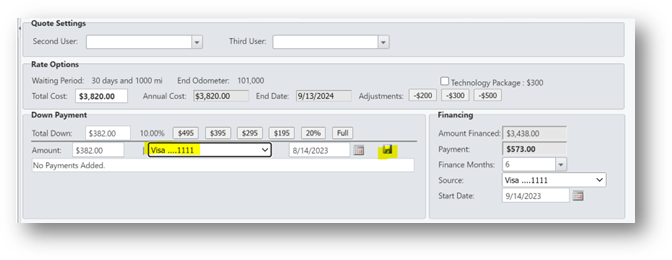
Choose the amount the customer wants to pay for the Down Payment in the amount box
Select the middle drop down and choose Add Edit Additional Payments
Enter the card info, then click the save disk
The card is PCI compliant and the field will verify if the card is valid or not
Once the information has been successfully added, you’ll see the card greyed out on the left -hand side
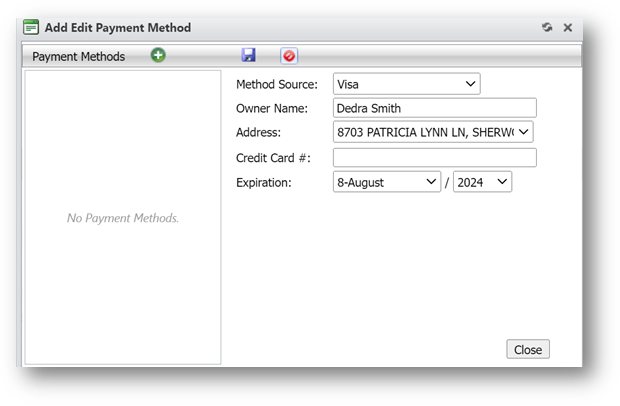
Click close and you’ll see the card info on the next screen
Finish the payment by clicking the save disk
In order to do a post date or split payment, add the amount the customer is willing to pay today, then click the save disk
Repeat the step and choose the date in the calendar box then click the save disk
Verify the finance terms are correct, then enter the CVS card number
At the top of the page, click the sell button to activate the policy
Policy
The policy will be active as long as the Downpayment has been fully made

Was this article helpful?
That’s Great!
Thank you for your feedback
Sorry! We couldn't be helpful
Thank you for your feedback
Feedback sent
We appreciate your effort and will try to fix the article