
Customer Service User Guide
Purpose: This is a step-by-step user guide for how to manage many of the customer service-related tasks using the Inline system.
Searching a Policy
The Global search is where you can go to search for everything in the system, however, in the case of searching just for specific policies you can perform the following steps to proceed to query only the searches you are looking for with a policy associated.
On the left side of the system, follow the steps below to search for an active customer.
Sales > Policies > Filter Status > Click Magnifying Glass
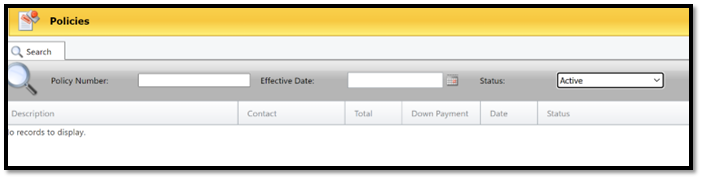
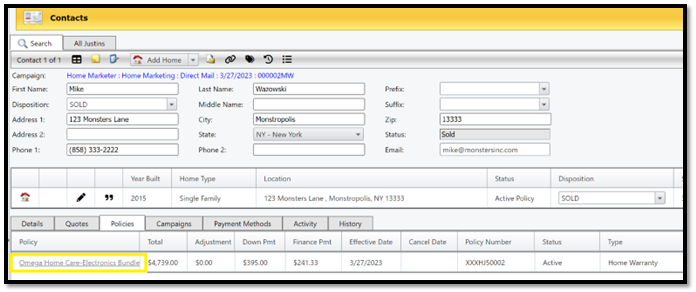
When you click on a contact name, it will take you to the customer’s file (home base), from this page you can update the information in the top fields, otherwise the system will automatically direct you to the policy tab. To proceed to the next step, click the active policy.
**Note Changes save automatically when updating the customer’s name, address, phone number or email if you click outside the boxes after making the changes.
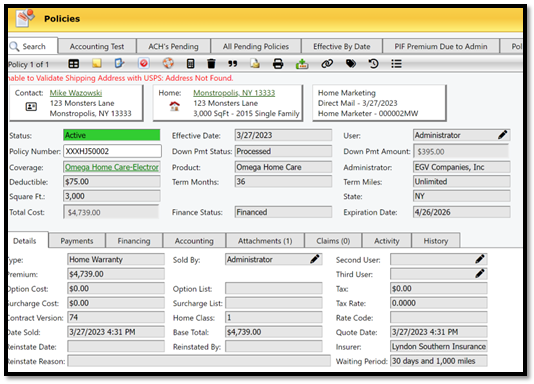
Details Tab
The details tab will show you the type of policy, premium, date sold, base total, sold by, waiting period and any additional users for this policy. If the policy has been cancelled and then reinstated, you will see the reinstate date and reason.
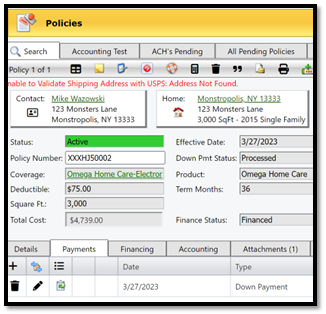
Payments Tab
The payments tab will show you the funds that have been collected on the policy. If there are multiple payments, the newest payment will always be on top.
To add a payment, click the black + mark directly under the details tab
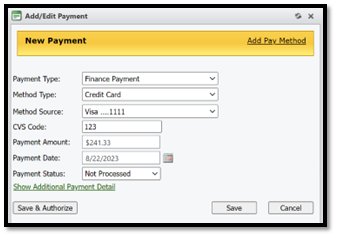
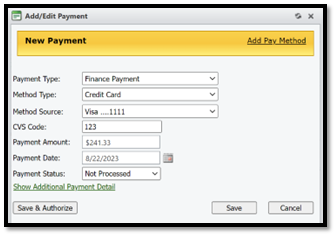
To add scheduled automatic finance payments, click on the hamburger icon (3 lines in upper righthand of the icon bar) and then select Schedule All Finance Payments.

**Note: The icon with 2 blue arrows is the View Transaction Logs which is a permission to see the transaction steps to the processor and will inform you if there are any errors or declines in the payment.
Finance Tab
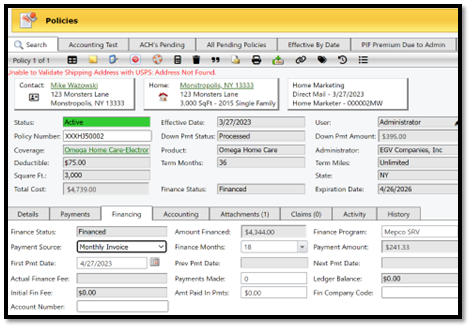
This page displays the payment source, either monthly invoice or the credit card will display depending on if the customer is on autopay or not.
The First Payment Date or Finance Months can be adjusted if user has permission to make changes
Accounting Tab
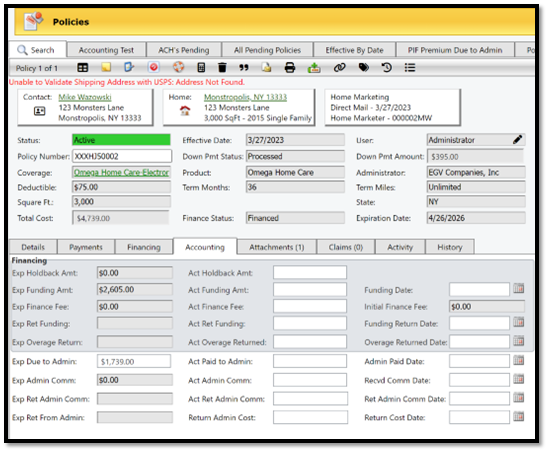
The first column reflects the expected funds calculated by Inline, the middle column is the actual funds the finance company collected, the last column reflects the dates.
Attachments Tab
This is where a user can attach documents to the contact (LOC, POA, etc), it is also where the PDF copy of the customer’s booklet will be stored after it has been transmitted.
The second icon in the upper left corner of the attachments tab (letter with a red paperclip) is where you can add additional documents to store to the customer’s file.
Claims Tab
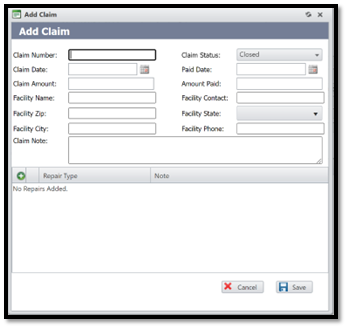
This tab can store claim data for the customer’s policy
This area is not automatically updated by the administrator, this area is for internal claim notes
Activities Tab
To add an activity, click on the blue clipboard icon and a dialogue box will appear. In the dialogue box you will specify the date and time and add a note for the reminder. If you have permission, you will be able to schedule the activity for another user.
History Tab
In the History Tab, select the clock with an arrow icon to view full history. This allows you to select from the following query options; Notes, Activity, Database Change or Audits.
Notes – Typed notes from users
Activity – Typed customer followup reminders
Database Changes – Changes to the contact or policy (ex: address change)
Audits – Records the user’s clicks on the customer’s contact (ex: Account Number Viewed, Record Opened)
How to Modify a Policy
To access the Modify Policy options, click on the hamburger icon located in upper right-hand side of the icon bar and hover over Modify Policy, then click one of the options explained in detail below.
Note* You will see the following options on some of the modify screens. Below is a brief explanation of the options:
Should a contract booklet be recreated? Yes = a new fulfilment document will be created with the changes you’ve just made. Note* clicking yes does not mean that a new booklet will be sent to the customer via mail
Should the customer be mailed? Yes = a new booklet would be mailed to the customer
Change Deductible
This option will allow you to select a different deductible if one is available.
Change Policy Square Feet or Vehicle Starting Milage
You have the choice to keep the Customer Cost the same and accept a change in profit or you can change the Customer Cost and keep the same profit.
Change Finance Term
Changing the finance term can be done if the finance company allows changes to their terms.
Are you going to notify the Finance Company of this change? *Note Inline does not automatically update the Finance Company, so you will still need to notify them of this change
Change Coverage Term
This is where you can update the term of the policy
This is still maintaining the same level of coverage with a different term
Change Coverage Level
This is where you can change the customer’s level of coverage
You can also add additional options and change deductible
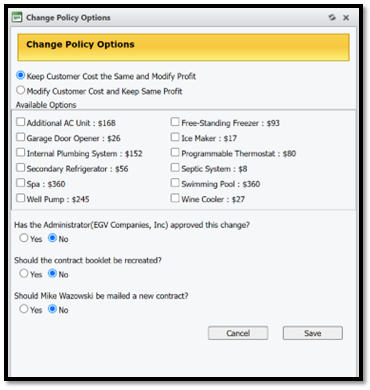
Change Policy Options
This option allows you to add the available policy options
This will ask if the Administrator has verified this change *Note: Inline does not automatically update the Administrator of the policy
Change Policy Total Premium
This provides the option to update policy premium
Restrictions would take effect based on the environment settings as the lowest value each user role would be permitted to take the policy total premium
Change Policy Options
This window allows additional options added to the policy
Was this article helpful?
That’s Great!
Thank you for your feedback
Sorry! We couldn't be helpful
Thank you for your feedback
Feedback sent
We appreciate your effort and will try to fix the article