Change Alert & Override Code– FAQ & Quick Guide
Purpose: This guide explains the CRM Change Alert feature, why it appears, and how to proceed when it appears.
Q: What is a Change Alert?
A: Change Alert is a security feature in the CRM that requires manager approval when certain pricing or discount rules are triggered.
Q: When will I see a Change Alert, and what does it block?
A: You’ll see a Change Alert when a cost or discount change falls outside allowed rules (for example, if the cost changes after a policy is sold but before the VIN is validated). While the alert is active, you cannot complete VIN validation or finalize the sale without manager approval. To continue, either (1) enter a manager username and override code, or (2) reverse the policy and correct the cost issue. After the issue is resolved, you can validate the VIN and update the Contract Status to Active.
Q: What are the most common reasons a Change Alert appears?
A: The alert typically appears in the following situations:
- Policy cost changes during VIN validation – If a policy is sold before the VIN is decoded, the user will be prompted for a manager username and override code when attempting to decode/validate the VIN. The Contract Status will remain Pending and cannot be changed to Active until an override is approved or the policy is reversed and the cost issue is corrected.
- Any Florida sale – Helps ensure discounts are not applied to Florida policies.
- Cost changes that exceed the Variable Mark-Up – Threshold is defined in Marketers > States/Markups.
- Cost changes that exceed the user’s allowed discount – Limits are based on the tier rules in Marketers > State
s/Markups.
Q: What is a manager override code, and how do I set one up?
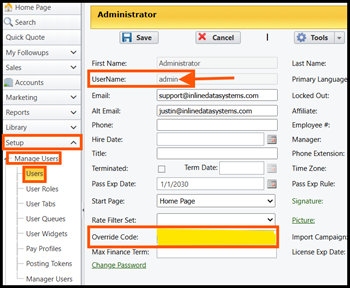
- A: An override code is a manager-only approval code used to continue when a Change Alert is triggered. Override codes must be exactly 4 numeric characters. To create or update a user’s override code:
Client note: If you do not have access to Setup, contact your internal administrator or your account manager to have a manager override code created.
- Go to Setup > Manager Users > Users.
- Select the pencil icon next to the user you want to edit.
Q: How do I clear a Change Alert and continue with VIN validation?
- A: To validate the VIN and continue:
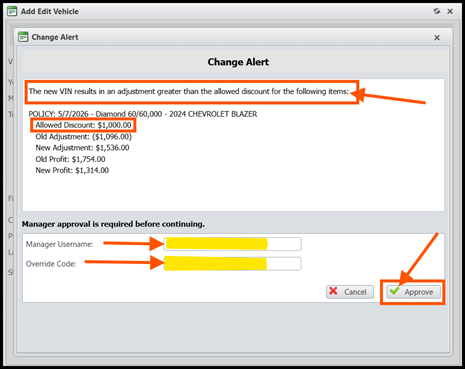
- Enter the manager’s username.
- Enter the manager’s override code.
- Click Approve.
Q: What information is shown in the Change Alert window?
A: The Change Alert window includes the details below to explain what triggered the approval request and what’s needed to proceed.
- The message at the top explains what triggered the alert.
- Allowed Discount – The maximum discount the requesting user can apply ($1,000.00 in this example).
- Manager Username – Enter a username for a manager who has an override code set up in their user settings.
- Override Code – The manager enters their override code and clicks Approve. Once approved, the cost is updated and the user can continue the sale normally.
Troubleshooting / Who to contact
- Don’t know the override code: Contact a manager (internal) or your admin/account manager (client) to obtain approval.
- Alert keeps appearing: Verify the policy cost/discount is correct and within the allowed threshold in the state/markup settings. If needed, reverse the policy and re-enter with corrected values.
- Need to change thresholds: Internal users can review Marketers > States/Markups. Clients can contact Inline support contact for assistance.
- Still stuck: Capture a screenshot of the Change Alert window and send it to support along with the policy/contract number.
Was this article helpful?
That’s Great!
Thank you for your feedback
Sorry! We couldn't be helpful
Thank you for your feedback
Feedback sent
We appreciate your effort and will try to fix the article