Table of Contents
Inline CRM Self-Finance FAQ .........................................................................................1
Automatic Payment Scheduling .....................................................................................1
Manual Payment Scheduling ......................................................................................... 2
Scheduling Multiple Finance Payments ......................................................................... 3
How to Change Scheduled Payment Dates ................................................................... 5
Updating individual payment dates .............................................................................. 5
Updating all future scheduled payment dates .............................................................. 6
How to Defer a Scheduled Self-Finance Payment .......................................................... 8
Discounts/Term Changes ................................................................................................ 9
Inline can schedule and process payments for self-financed policies. This guide will walk you through managing these policies, making changes, and scheduling payments.
Automatic Payment Scheduling
When this feature is enabled, the system will schedule the next monthly Finance Payment AFTER the previous payment is processed for the same day the following month.
*Please note these steps do NOT apply to sales that are financed outside of Inline.
Ex: A down payment is processed on 4/30/26; the first monthly payment will be automatically scheduled for 5/30/26, then 6/30/26, repeat.
Please note that if you select 30th or 31st as the payment date each month, the system will default to the last day of the month.
To turn on Automatic Payment Scheduling:
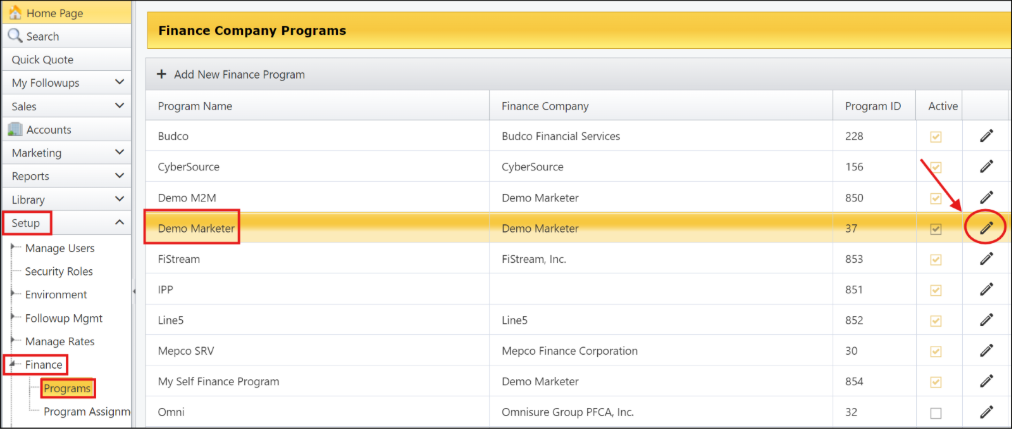
1. Go to Setup > Finance > Programs > Click the pencil icon on the right next to your Company
Name
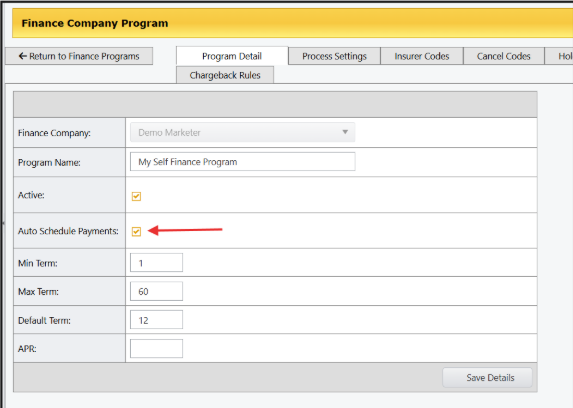
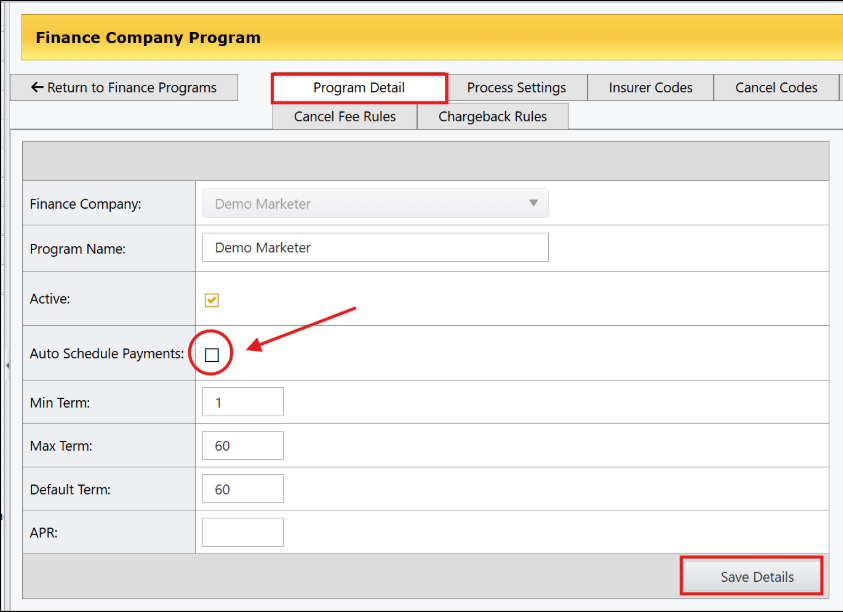
2. Under the Program Detail Tab - Check the box to enable Auto Schedule Payments
3. Click Save Details
Manual Payment Scheduling
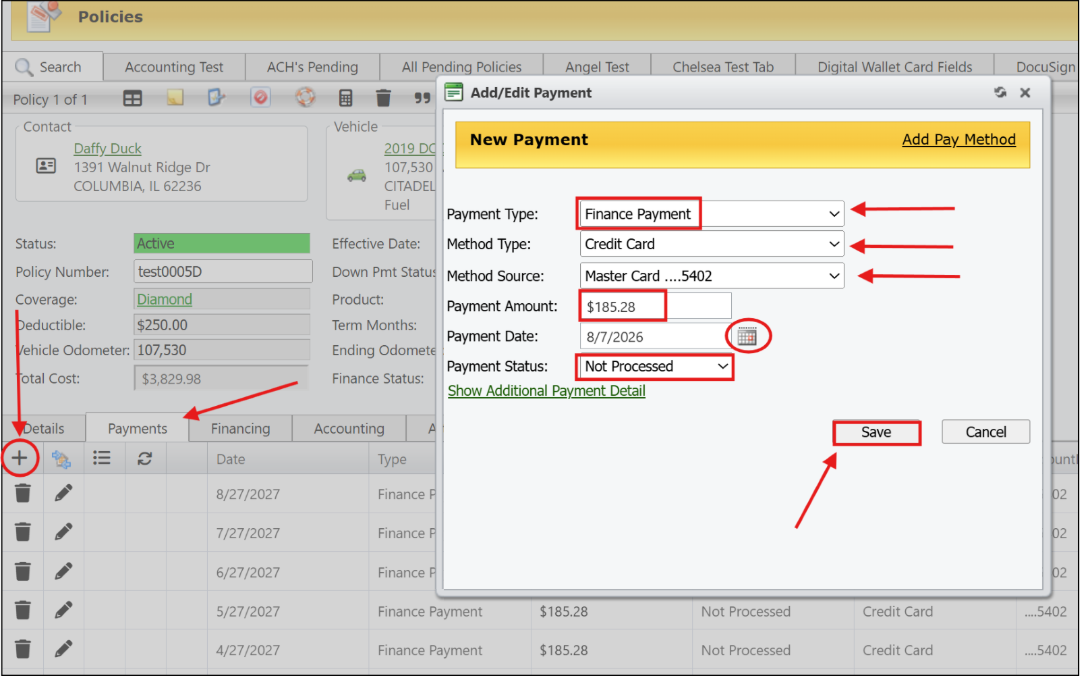
If the “Auto Schedule Payments” tool is NOT enabled, you will follow the steps below to manually schedule a single finance payment.
- Click the Payments tab
- Click the + icon to Add a Payment
- Select Payment Type = Finance Payment
- Method Type - CC or ACH
- Method Source - CC # or ACH Account #
- Payment Amount - Enter the Amount
- Payment Date = Date to be processed
- Payment Status = Select Not Processed (system will process automatically)
- Click Save
Scheduling Multiple Finance Payments
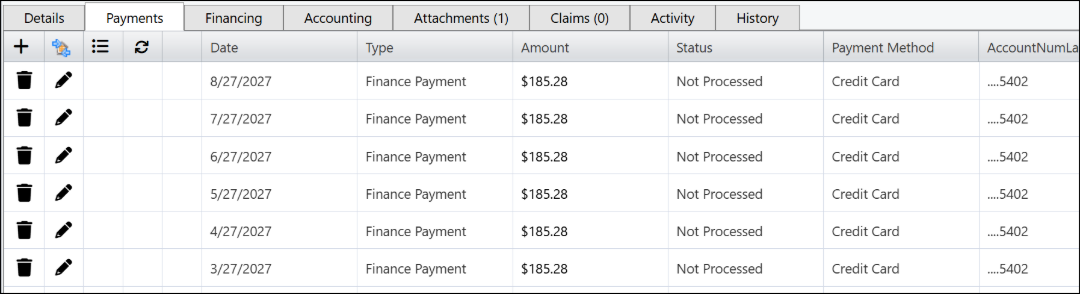
When the “Auto Schedule Payments” setting is turned OFF for your self-finance program, you will have to manually schedule all future payments for a self-finance policy.
Ex: A contract sold on 1/3/25 with a first payment date of 2/14/25 will schedule future payments for the 14th every month.
To schedule multiple or all finance payments after the sale:
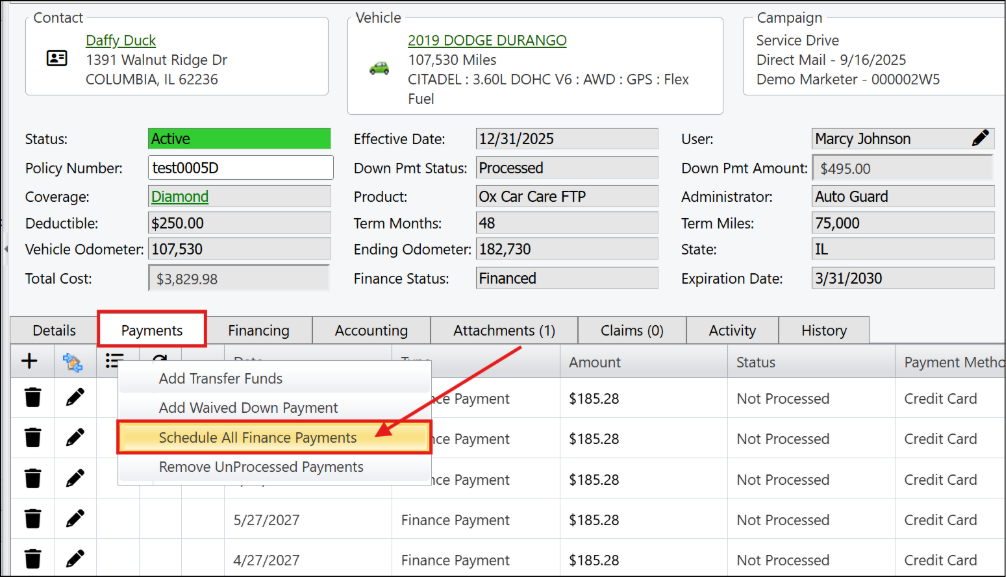
1. On the Policy page, go to the Payments tab
2. Hover over payment menu icon > Click “Schedule All Finance Payments”
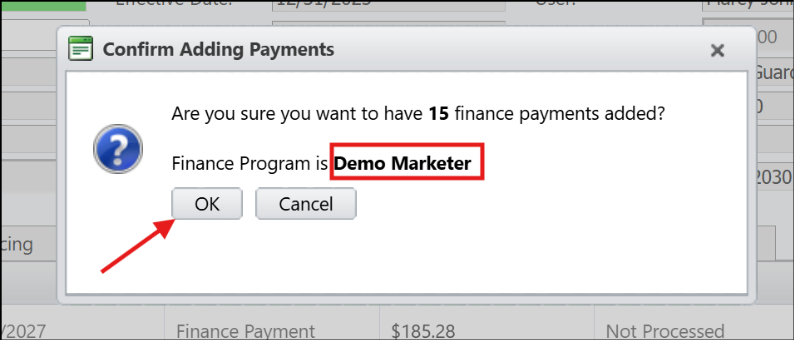
a. Be sure to verify the Finance Program is set to your Self Finance Company
3. Click OK to schedule all payments
How to Change Scheduled Payment Dates
You can update payment dates individually, or all can be changed to a specific date.
Updating individual payment dates
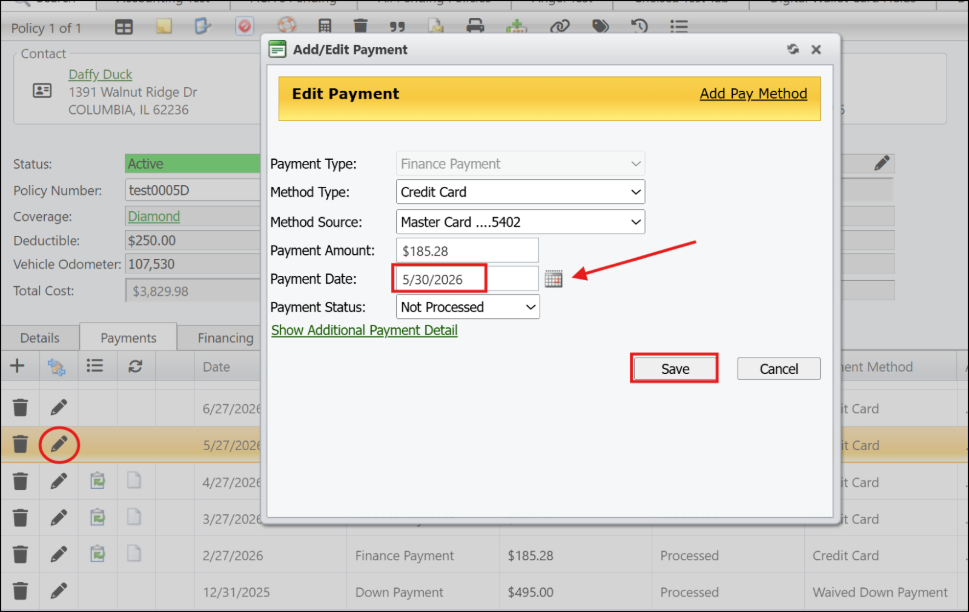
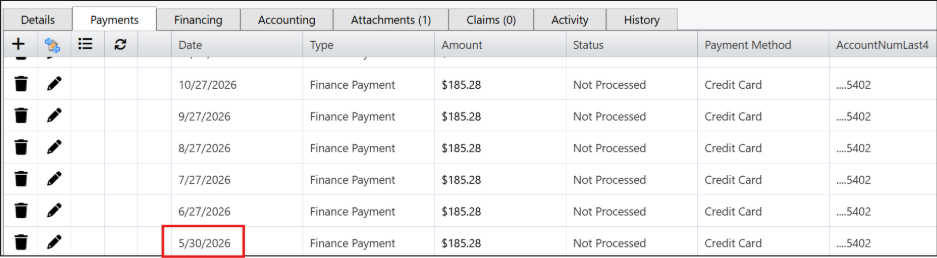
Under the Payments tab, Click the Pencil icon next to the payment you wish to edit
Next to Payment Date, open the Calendar Popup and select the desired date
Leave Payment Status as Not Processed
Click Save
Updating all future scheduled payment dates
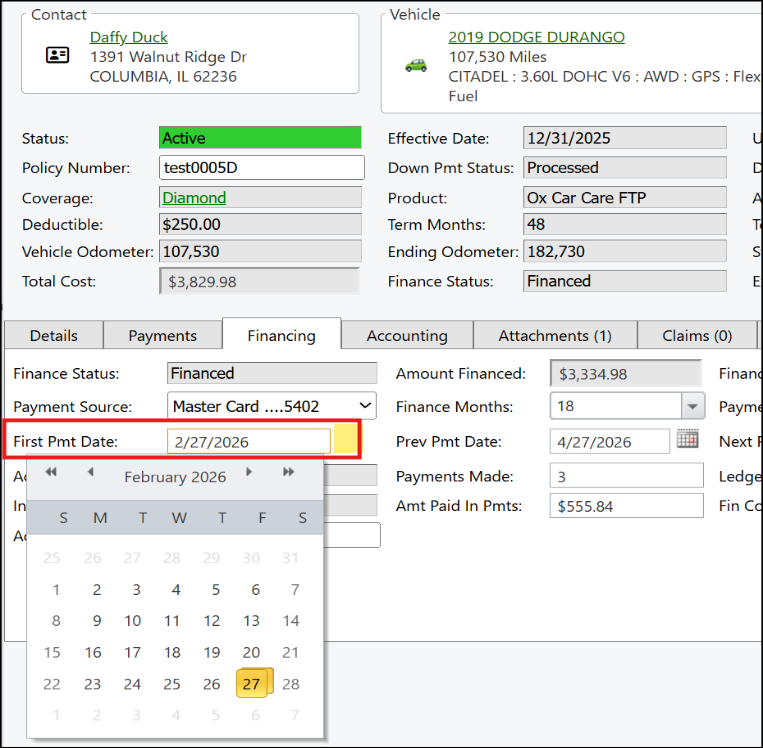
If a customer needs ALL future payment dates to be changed to a specific day of the month, (ex. Change from the 10th to the 15th) you will need to remove ALL unprocessed payments and then reschedule them for the correct date.
Under the Finance tab, open the pop-up calendar located next to the “First Pmt Date” field
Select the due date you wish to change (the NEW payment date)
Click on the Payments tab and hover over the payment menu icon
Select Remove Unprocessed Payments > Click OK to confirm
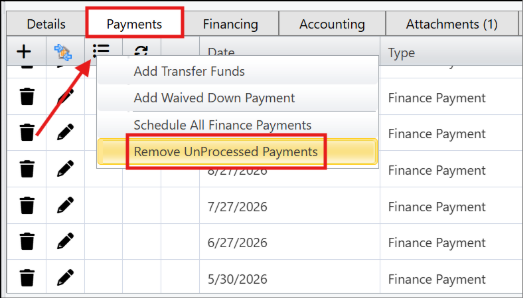
Once the Unprocessed payments have been removed, hover over the payment menu icon again and select “Schedule All Finance Payments” > Click OK to confirm
The system will then schedule all future payments to be processed every month on the same day you just selected for the first payment date. Double check the payment date shown is the same as the NEW payment date.
How to Defer a Scheduled Self-Finance Payment
A deferred payment allows the customer to skip a monthly installment and add it to the back end of their payment agreement. To apply a payment deferral to a self-financed customer account, you will need to add a new finance payment first, then delete the finance payment for the month you are deferring.
In this example scenario, the customer needs to skip their next finance payment due on 5/27/2026. The last payment date is scheduled for 7/27/2027. To apply the deferral, follow the steps below.
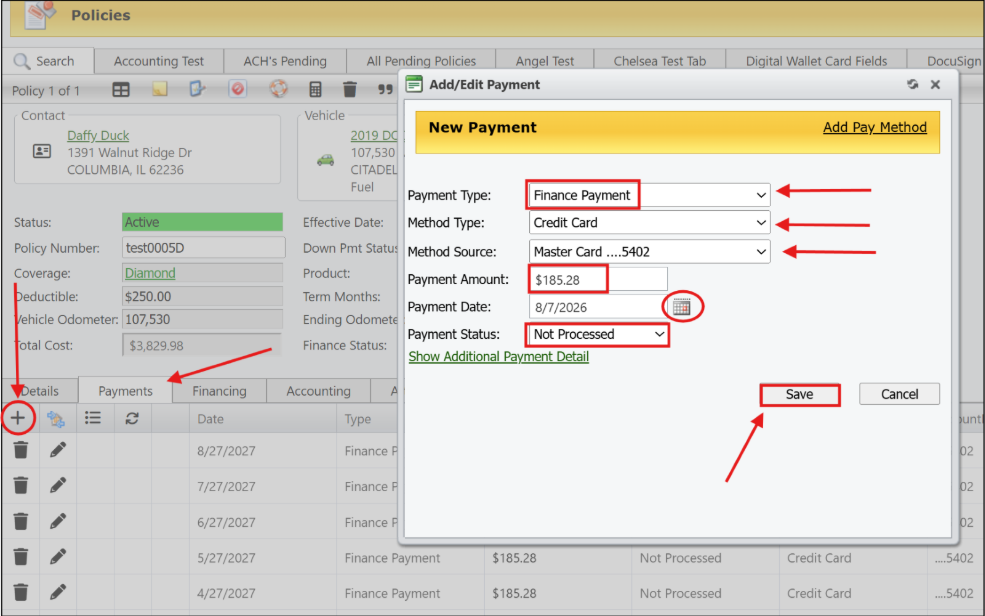
Add a new finance payment for 8/27/2027
Click to view the Payments tab
Click the + icon to Add a Payment
Select Payment Type - Finance Payment
Method Type - CC or ACH
Method Source - CC # or ACH Account #
Payment Amount - The amount of the installment
Payment Date - The date for the NEW payment (8/27/27)
Payment Status - Set to Not Processed
Click Save

Delete the payment being deferred - 5/26/2026
Select the Payments Tab
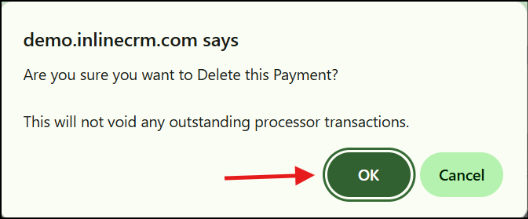
Click the trash can icon next to the payment you wish to delete
Click OK in pop-up window and payment will be removed

Discounts/Term Changes
When a discount or term change is applied to a customer account, the monthly payments will need to be updated to the new amount. This means that any self-financed unprocessed payments will need to be removed, and new payments will need to be added.
AFTER the discount or term change has been applied to the policy, follow these steps:
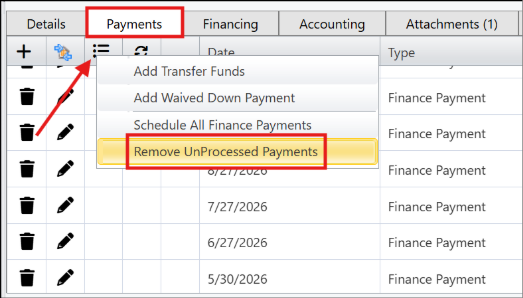
Click on the Payments tab and hover over the payment menu icon
Select “Remove UnProcessed Payments”
Click OK to confirm
Once the UnProcessed payments have been removed, hover over the payments menu icon again and select “Schedule All Finance Payments”
Click OK to confirm
The system will schedule all future payments to process on the same day as the previous payment dates.
Double check the payments shown are for the correct amount and date
Was this article helpful?
That’s Great!
Thank you for your feedback
Sorry! We couldn't be helpful
Thank you for your feedback
Feedback sent
We appreciate your effort and will try to fix the article