How to Schedule/Change Finance Payment Dates
Scheduling Self Finance Payments is an option for managing self-financed policies. This will provide you with the steps needed to change a specific payment date or reschedule all future payments.
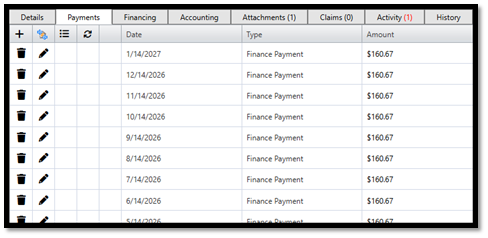
To Schedule All Finance Payments- The system default will automatically schedule all future payments to process monthly on the same day that was selected for the first payment date.
Ex. A contract sold on 1/3/25 with a first payment date of 2/14/25; all future payments scheduled will be processed on the 14th of every month.
1. On the Policy page, go to the Payments tab
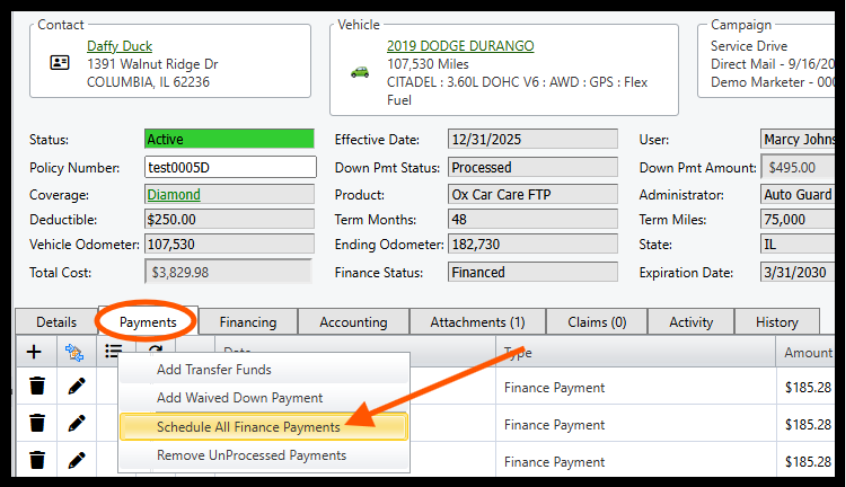
2. Hover over the bullets icon
 > Click” Schedule All Finance Payments” (Be sure to verify the
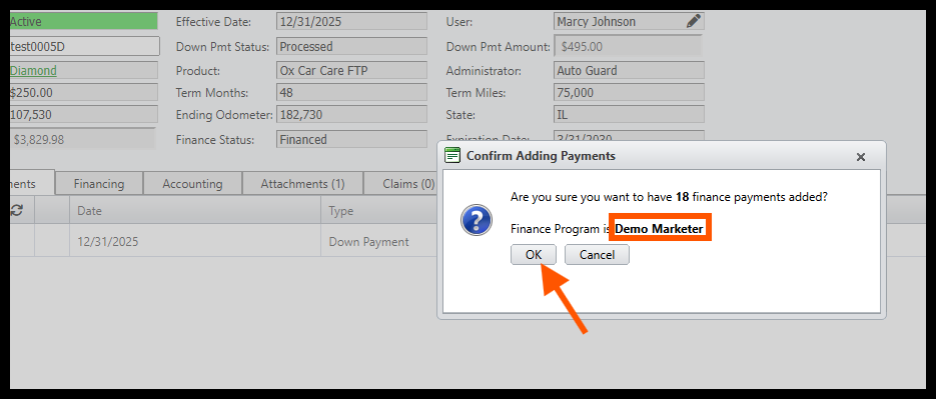
 Finance Program is the Self Finance Company you are using)
3. Click OK to schedule all payments.
A. How to Change Individual Payment Dates- You can update payment dates individually, or all can
be changed to a specific date. To update an individual payment, follow these steps;
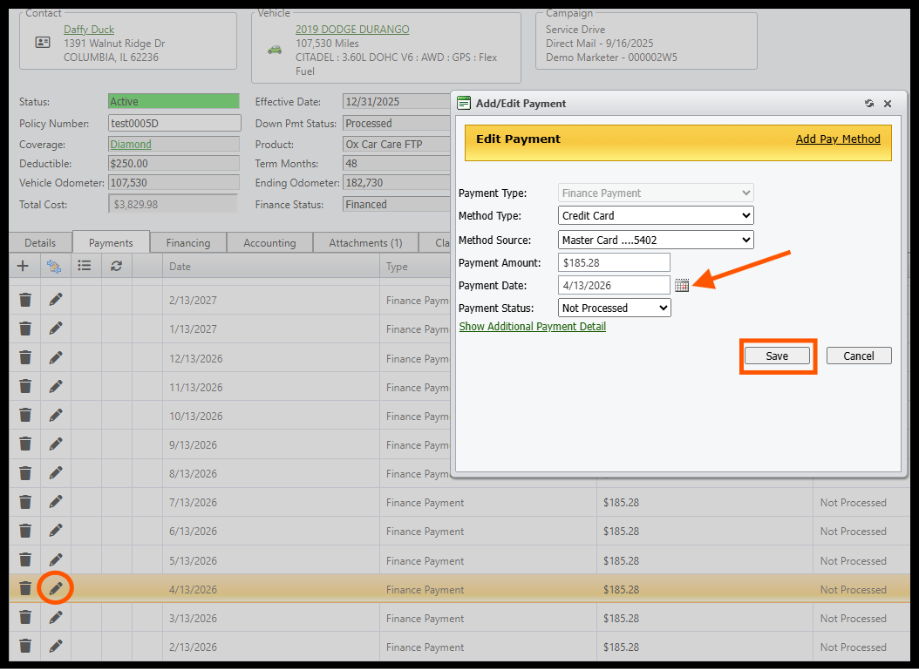
i. Under the Payments tab, Click the Pencil icon next to the payment you wish to edit
ii. Next to Payment Date, open the Calendar Popup and select the desired date
iii. Click Save
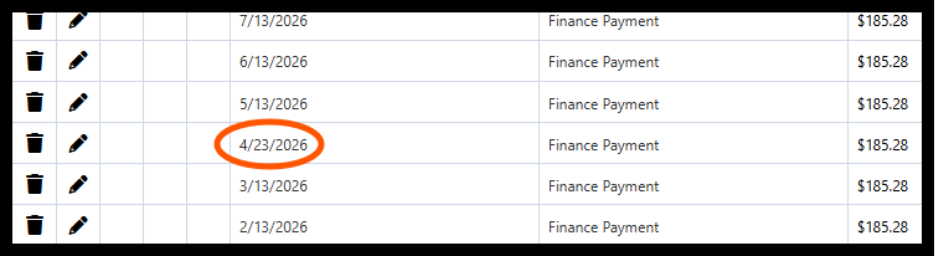
B. Updating ALL future payment dates- If a customer needs ALL future payment dates to be changed to a specific day of the month, (ex. Change from the 10th to the 15th) you will need to remove ALL unprocessed payments and then reschedule them for that date. To reschedule ALL future payment dates, follow these steps;
i. Under the Finance tab, open the pop-up calendar located next to the “First Pmt Date” field
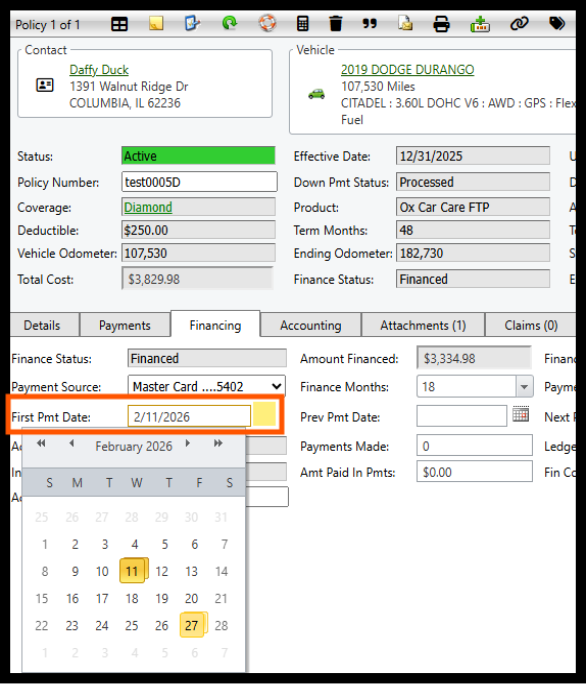
ii. Select the due date you wish to change to (the NEW payment date)
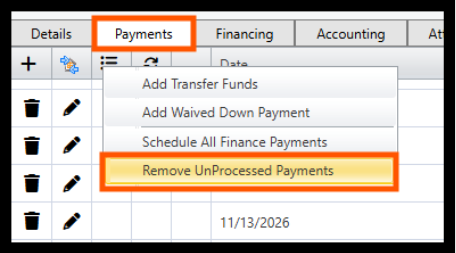
iii. Click on the Payments tab and hover of the bullets icon

iv. Select Remove UnProcessed Payments > Click OK to confirm
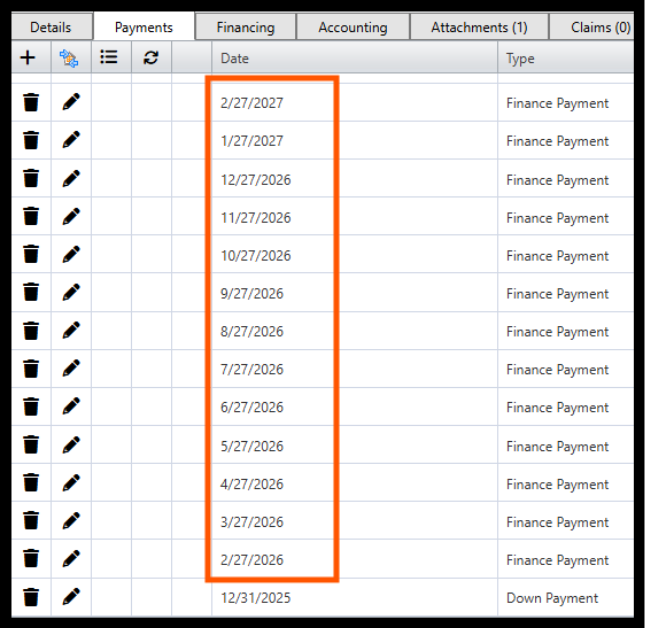
v. Once the UnProcessed payments have been removed, hover over the bullets icon again and select
Schedule All Finance Payments > Click OK to confirm
vi. The system default will automatically schedule all future payments to process every month on the
same day you just selected for the first payment date. Double check the payment date shown is the
same as the NEW payment date
Was this article helpful?
That’s Great!
Thank you for your feedback
Sorry! We couldn't be helpful
Thank you for your feedback
Feedback sent
We appreciate your effort and will try to fix the article