How to Add Transfer Funds to New or Existing Contracts
If a Contract has been cancelled and is eligible for a Pro-rata refund, the refund amount can be applied towards a new contract purchase OR transferred to another contract.
Step 1 explains how to transfer funds from a canceled contract toward a new contract purchase.
Step 2 explains how to apply the funds as a payment on an existing contract.
1. To transfer funds as a Down Payment towards a New Contract Purchase
a. Use the
 icon to locate and open the Customer Contact
b. Select the desired asset from the drop-down menu (Add Vehicle, Home, RV, etc.)
c. Click the
 New Quote icon > Select the desired Product/Coverage/Cost
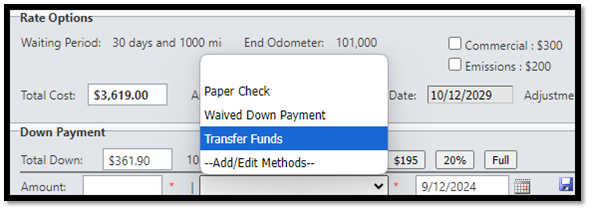
d. Under Down Payment, click the drop-down menu > Click Transfer Funds (Opens a Transfer Policy Funds
window that will populate any canceled contracts connected to the Customer)
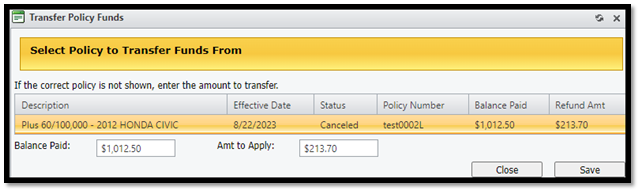
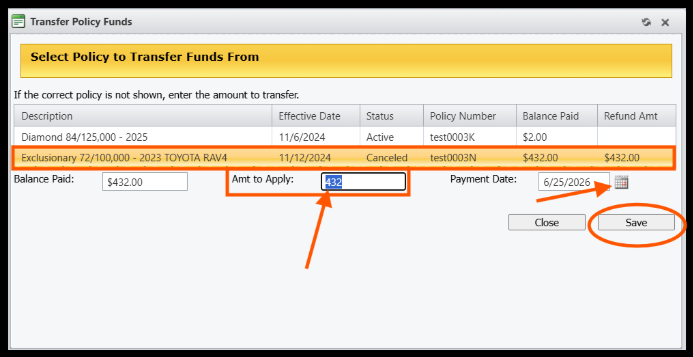
e. Locate and select the applicable canceled policy > Amt to Apply is the available refund amount you
will be using towards the New Contract > Click
 icon to close
f. Click the
 icon by Down Payment to add Transfer Funds as a transaction
g. If no other payments are being added, Click the
 icon to complete
2. To transfer funds towards the balance of an Existing Contract
a. Use the
 icon to locate and open the Customer Contact
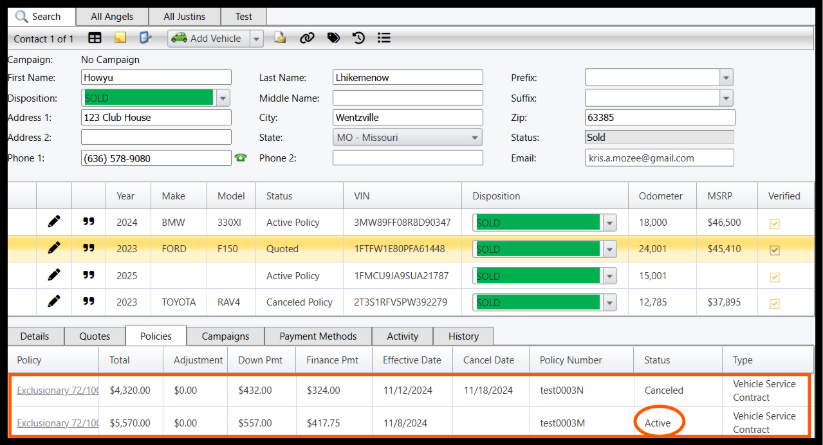
b. Select the Policies tab > Click the hyperlink to open the Active Policy you will be transferring funds to
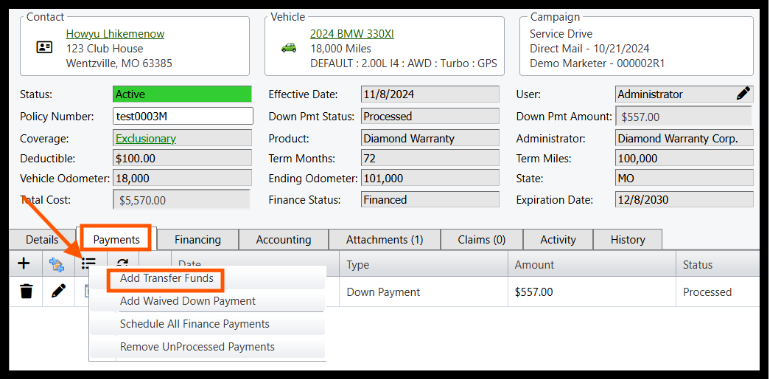
c. From the Payments tab, hover over the hamburger to expand the options
d. Select Add Transfer Funds- a Transfer Policy Funds window will open automatically
e. Select the Canceled contract or Enter the Amount to Transfer in the Amt To Apply box
f. Choose the Payment Date
g. Click Save to close the window
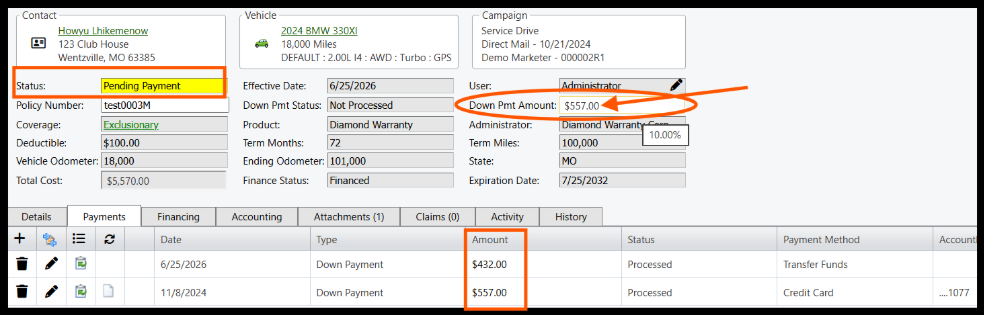
h. You will now see the Transferred Funds under the Payments tab
i. You MUST update the Down Payment amount on the Customers Contract to match the total dollar
amount of all Down Payments. If not updated, the Policy will stay in a Pending Payment Status and will
not transmit to the Finance Company or Administrator
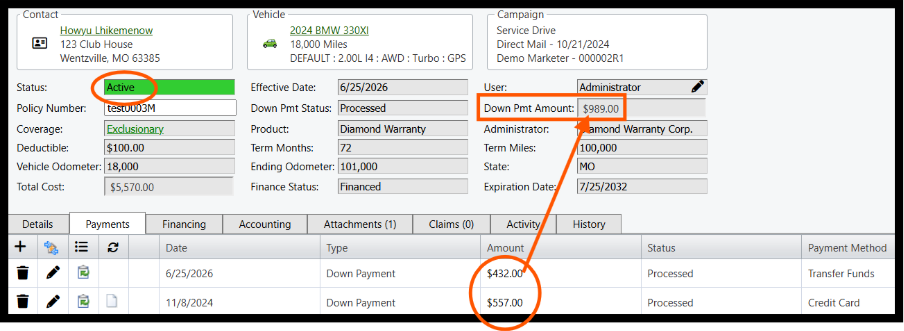
j. Once the Down Pmt Amount is corrected, the Contract will change to Active, and no further action is needed
Was this article helpful?
That’s Great!
Thank you for your feedback
Sorry! We couldn't be helpful
Thank you for your feedback
Feedback sent
We appreciate your effort and will try to fix the article