Managing and Bulk Changing User Passwords
This document will cover the available options for managing/changing User Passwords. Users may be asked to change/update their password for security purposes, forget their password and need to reset it, or the organization is changing their process and need to update/reset ALL User passwords.
1. To update YOUR password
Click here & follow the steps: How to Reset User Password
2. To bulk update other User passwords
The User MUST have the necessary permissions selected in their Security Role.
If permission is already enabled, skip to page 2 section titled “How to Change All User Passwords”
To assign permission to a Security Role:
a. Click the Setup Menu > Security Roles > Select a Role from the available list on left
b. Under Environment permissions, check option for “Change All User Passwords”
c. Click Save icon when completed. Users assigned to that Security Role can now change other
users' passwords
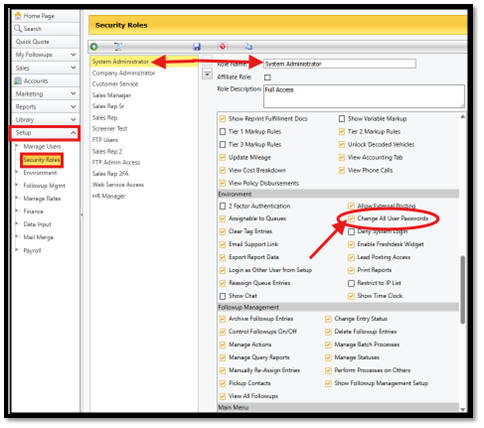
Add Check to Enable- The Security role selected CAN Change All User Passwords
Un-Check to Disable- The Security role selected CANNOT Change All User Passwords
How to Change All user Passwords
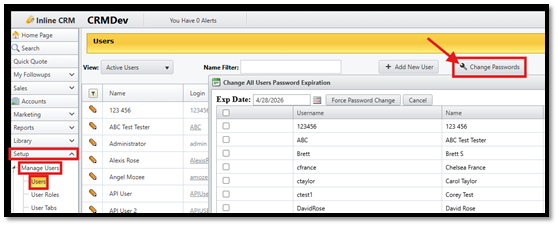
a. Go to Setup
b. Click Manage Users > Users
c. Click the Change Passwords icon
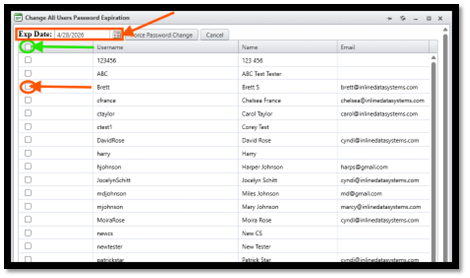
d. To reset ALL Users' passwords, check the box at the very top (green circle)
e. To reset individual passwords, check the box by each User's name (red circle)
f. Once selected, the Exp. Date box will default to the current date. To change to a future
date, click on the pop-up calendar and select your desired date. This is the date the new user
password will expire.
g. Once you’ve selected the date and users, click Force Password Change
h. Click OK on Success pop-up window
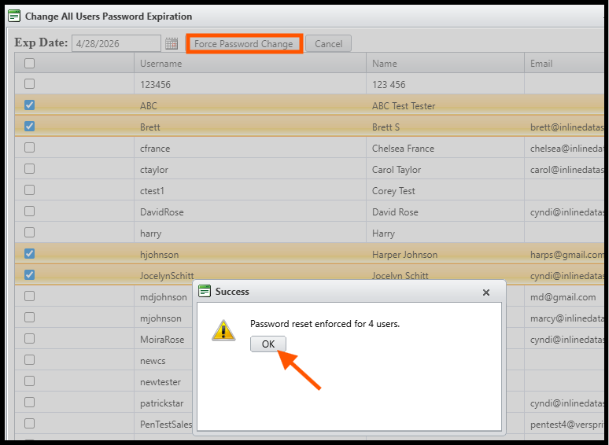
Once this has been completed, any users who were selected will be required to update their password the next time they log in to the site
Was this article helpful?
That’s Great!
Thank you for your feedback
Sorry! We couldn't be helpful
Thank you for your feedback
Feedback sent
We appreciate your effort and will try to fix the article