How to Create & Modify a Rate Filter Set
Rate Filters are a way to set your desired Odometer and Age ranges for each level of coverage with each Administrator. You can also assign specific users to this Rate Filter to limit the plans they can view/sell within your site. This document will walk you through creating a new Rate Filter Set as well as how to modify an existing one.
1. Click the Setup Menu and click Manage Rates
2. Select Rate Filters
A. To add a New Rate Filter Set, click the
 icon
icon
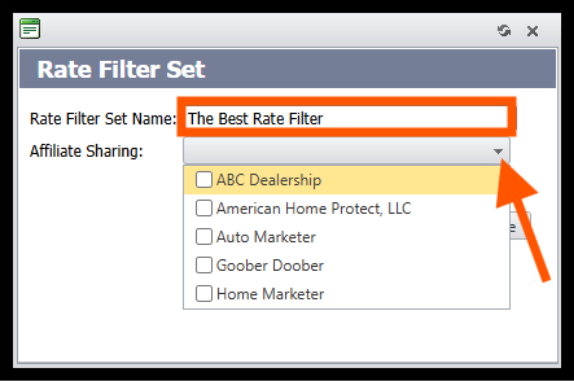
a. Add a name for this Rate Filter Set
b. Click the drop-down arrow to select the Affiliate/s to share this Rate Set with
c. Click the Save icon
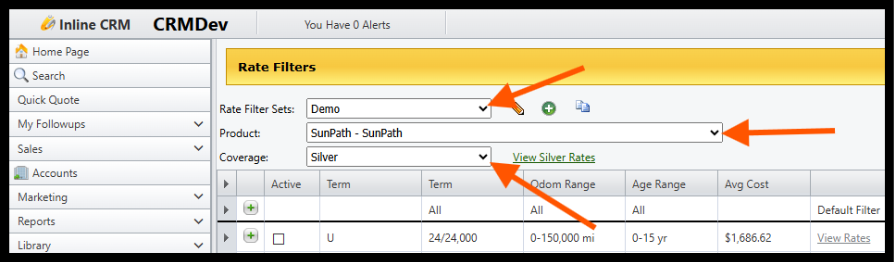
B. To modify an existing Rate Set, click on the drop-down arrow and select the Rate Filter you
wish to modify
a. Select the Product to modify from the drop-down
b. Select the Coverage type from the drop-down
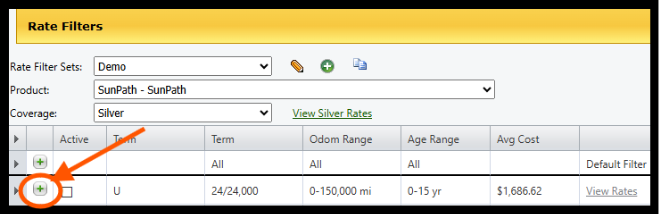
3. In the list of Rates is a Green + icon
 located next to each term.
4. Click the
 icon next to the term you wish to edit
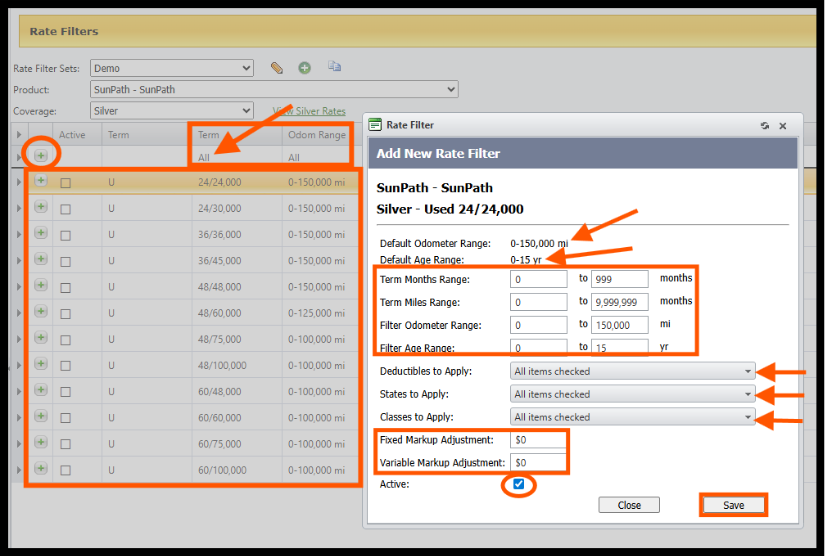
5. At the top of the Rate Filter window is the Admin’s Default Odometer and Age Range for this level
of coverage. These are the max ranges, meaning any adjustments you make must be LESS than
these ranges.
6. Add your desired Odometer Range
7. Add your desired Age Range
8. Select the Deductibles to apply
9. Select the States you wish to apply. You can select specific states or apply to all
10. Select the Vehicle Classes to apply. You can choose specific classes or apply to all
11. Add Fixed and Variable Markup (optional)
12. Be sure to check the Active box if you will be using this Rate Filter
13. Click the Save Icon
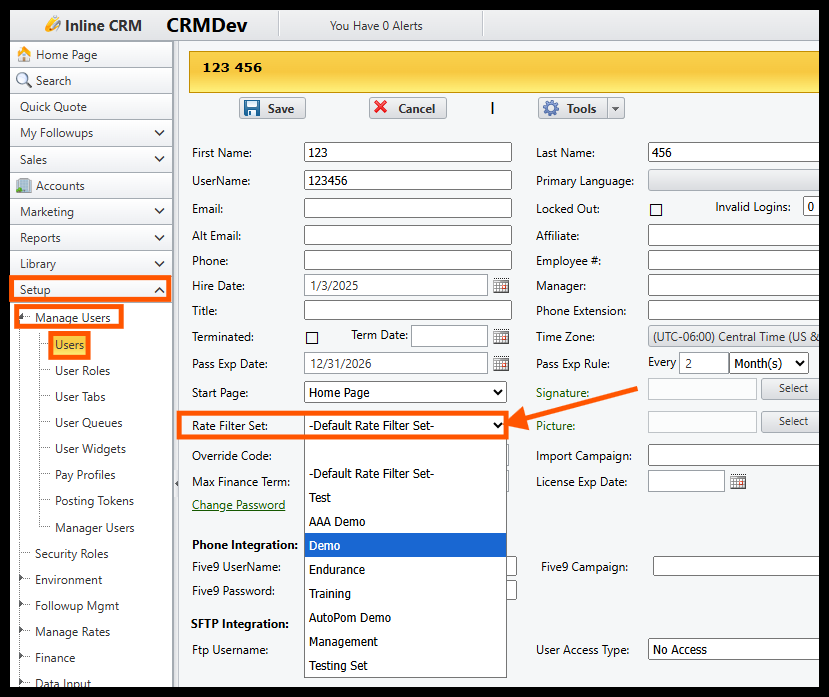
Assigning Users to this Rate Filter
1. Click Setup
2. Select Manage Users
3. Click the Pencil Icon next to the User
4. Under Rate Filter Set, click the drop-down menu and select the desired Rate Filter to assign this
user
5. Click the Save Icon
Was this article helpful?
That’s Great!
Thank you for your feedback
Sorry! We couldn't be helpful
Thank you for your feedback
Feedback sent
We appreciate your effort and will try to fix the article